 OpenSearch explorer
opensearch/explorer/
Click through your vector indexes: what's missing, what doesn't fit, what a question finds
explore() turns a notebook cell into a window on your OpenSearch domains and Serverless collections. Click one for its indexes, vector indexes first; an index for its vector fields and the memory they need; its documents for the ones search can never return; and ask a question to see what's nearest.
- One install, no OpenSearch client needed
- Read-only: never writes to an index
- Domains and Serverless collections
- Search by question or by document
The examples use vectors-prod, a domain holding support-docs (the help-center articles a support assistant retrieves from), and kb-support, the Serverless collection behind a Bedrock knowledge base. The screenshots are the real window in JupyterLab on a simulated OpenSearch. For reports you run from code, see the OpenSearch guide.
Watch it run
Four steps in a notebook, from every domain and collection to the documents nearest a question: each command typed and run, and the window it shows, with what to notice. It plays as you scroll to it; click it to pause, or pick a chapter to jump to a step.
Full screen · Download as MP4, for Slack or a slide (light or dark, as this page is)
Open it
-
Install it in a notebook cell:
%pip install aws-analyzer -
Open the window. It uses the notebook's IAM role and region, so there's nothing to configure.
from aws_analyzer import OpenSearchView

ui = OpenSearchView()
x = ui.explore()                 # the domain with the most memory for vectors
Straight to a domain, a collection, an index or a tab
ui.explore()                                      # the domain with the most memory for vectors
ui.explore("vectors-prod/support-docs")           # straight to one index
ui.explore("kb-support", tab="documents")         # a Serverless collection, on its documents
A domain or collection is named by its name, an ARN, a collection ID or an endpoint URL, and an index as "domain/index". tab= is one of "overview", "indexes", "documents" and "search". region=, profile= and height= work as for the reports. The window needs ipywidgets, which SageMaker notebooks already have; without it, or outside Jupyter, explore() shows the reports instead.
Start here
Four things to try in your first minute. Nothing you click writes to an index or changes a domain.
What's wrong
- Which domains and collections need a look? Read the Domains tab, warnings first
- Do my vectors fit in the memory the nodes have? Indexes, then click the index
- Which documents can search never find? Open the Documents tab
Try it
- What's nearest to this question? Search, type it, press Enter
Every domain and collection
The Domains tab lists every domain and Serverless collection in the region, the ones with warnings first, under the region's cards.
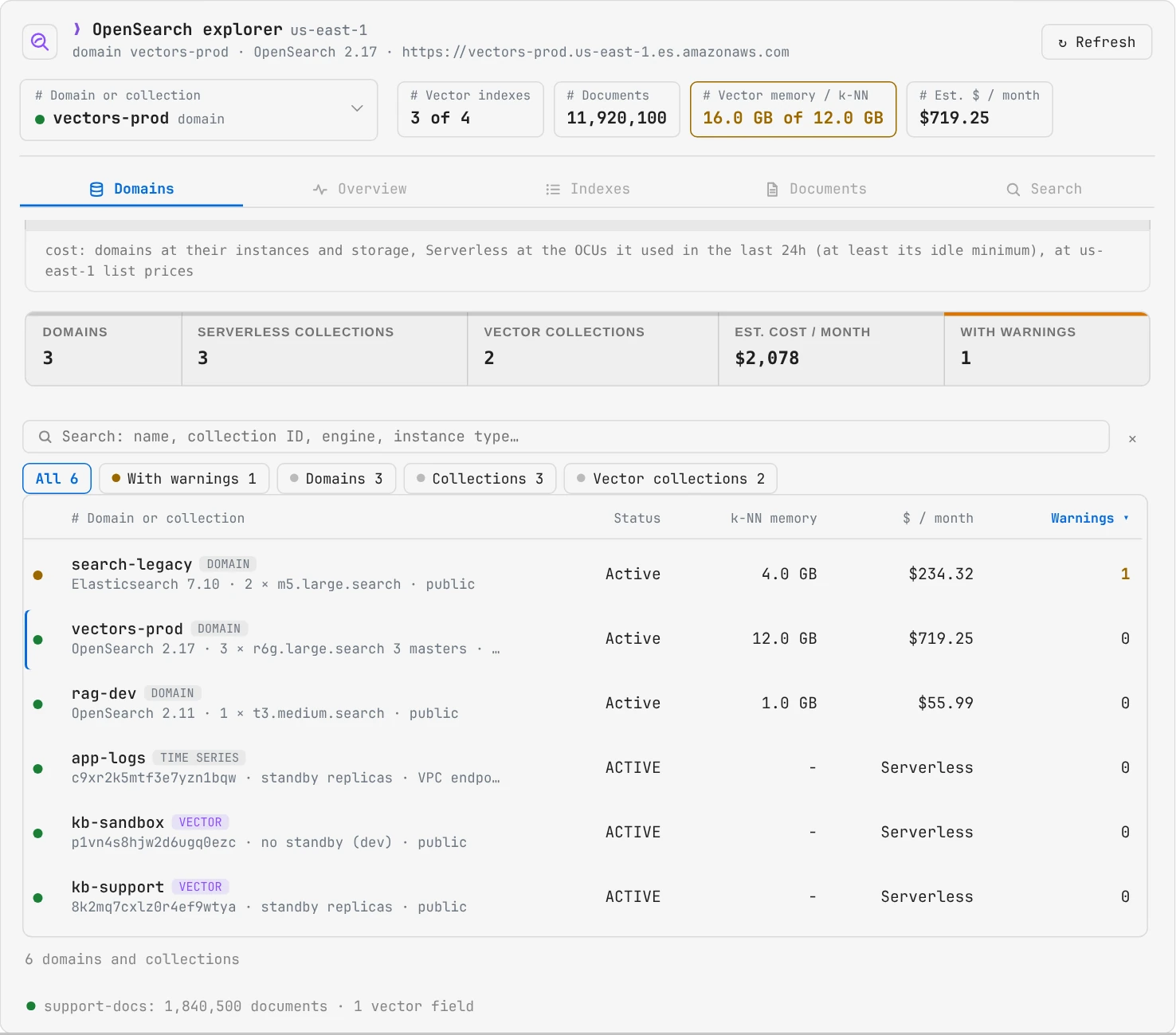
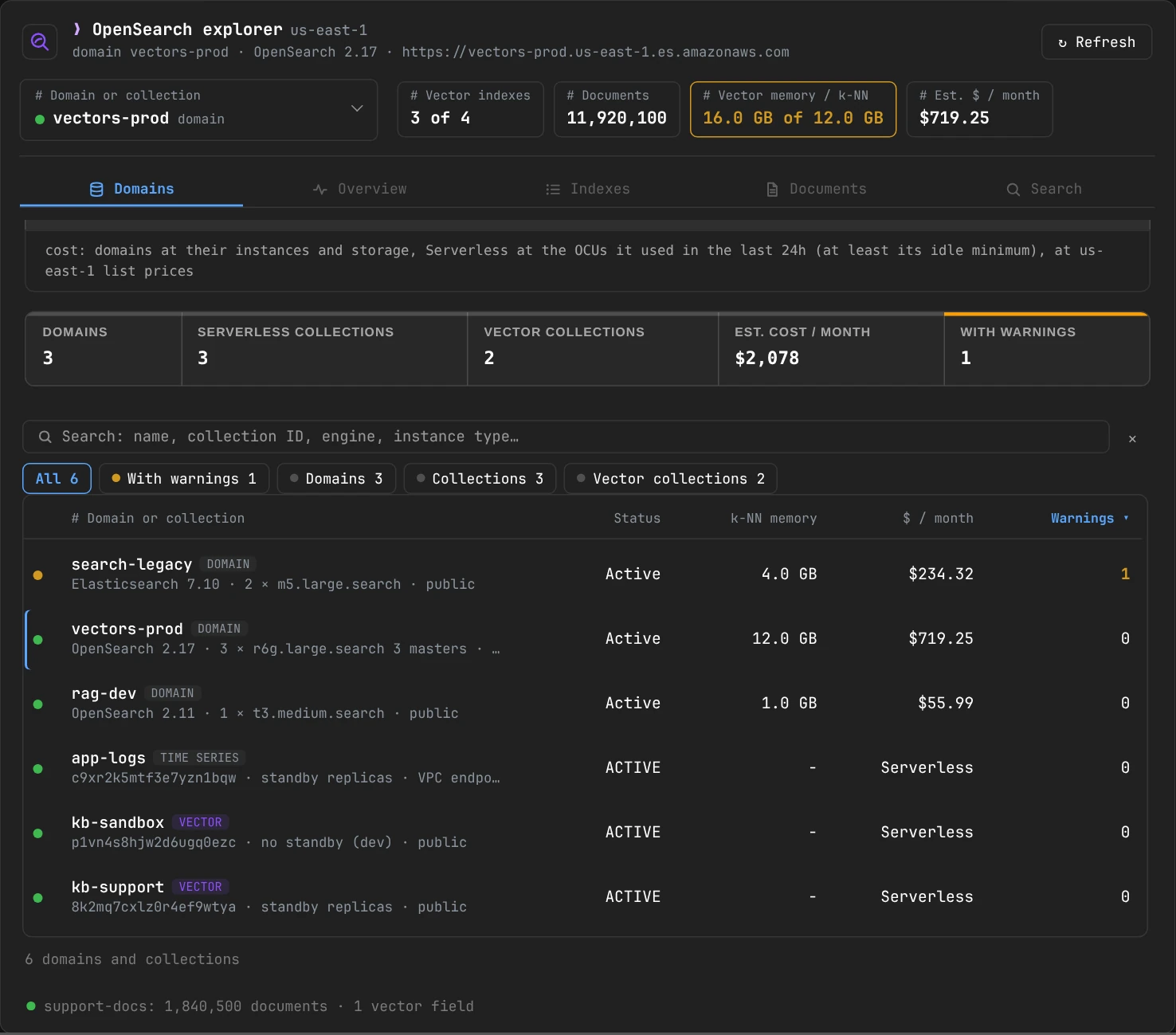
ui.explore(): every domain and collection, the ones with warnings first; search them, pick a chip (With warnings, Domains, Vector collections, ...) or click a column to sort.
Each line has its status, the memory it has for vectors (k-NN memory), its monthly cost and its warnings. Search by name, click a chip for only those With warnings, the Domains, the Collections, the Vector collections or those Not active, and click a column's header to sort by it. Below the list are the region's Serverless capacity and warnings. Click one to open it: its Overview is indexes().
Its indexes
The Indexes tab lists the indexes of the one you opened, vector indexes first. Click one for its vector fields in plain English and the memory they need.
The Indexes tab lists the indexes of the one you opened, vector indexes first, each with its first vector field, its documents and size, and a dot for its health or warnings. Click one to read it as index_info() shows it: its vector fields in plain English, the memory they need against what the nodes have, the fields to filter on and the k-NN query to copy.
Chips show only the Vector indexes, those With warnings or those Not green.
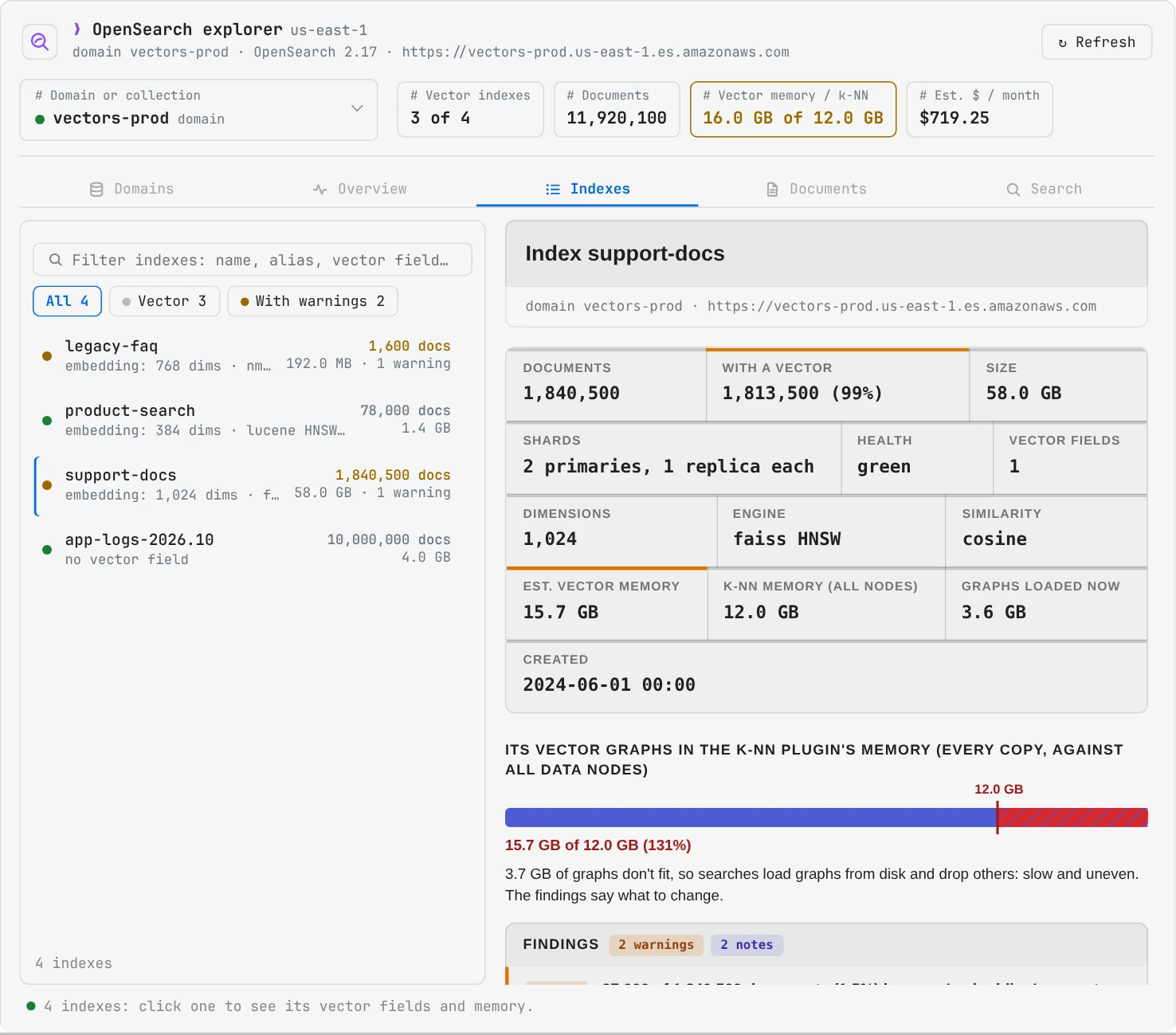
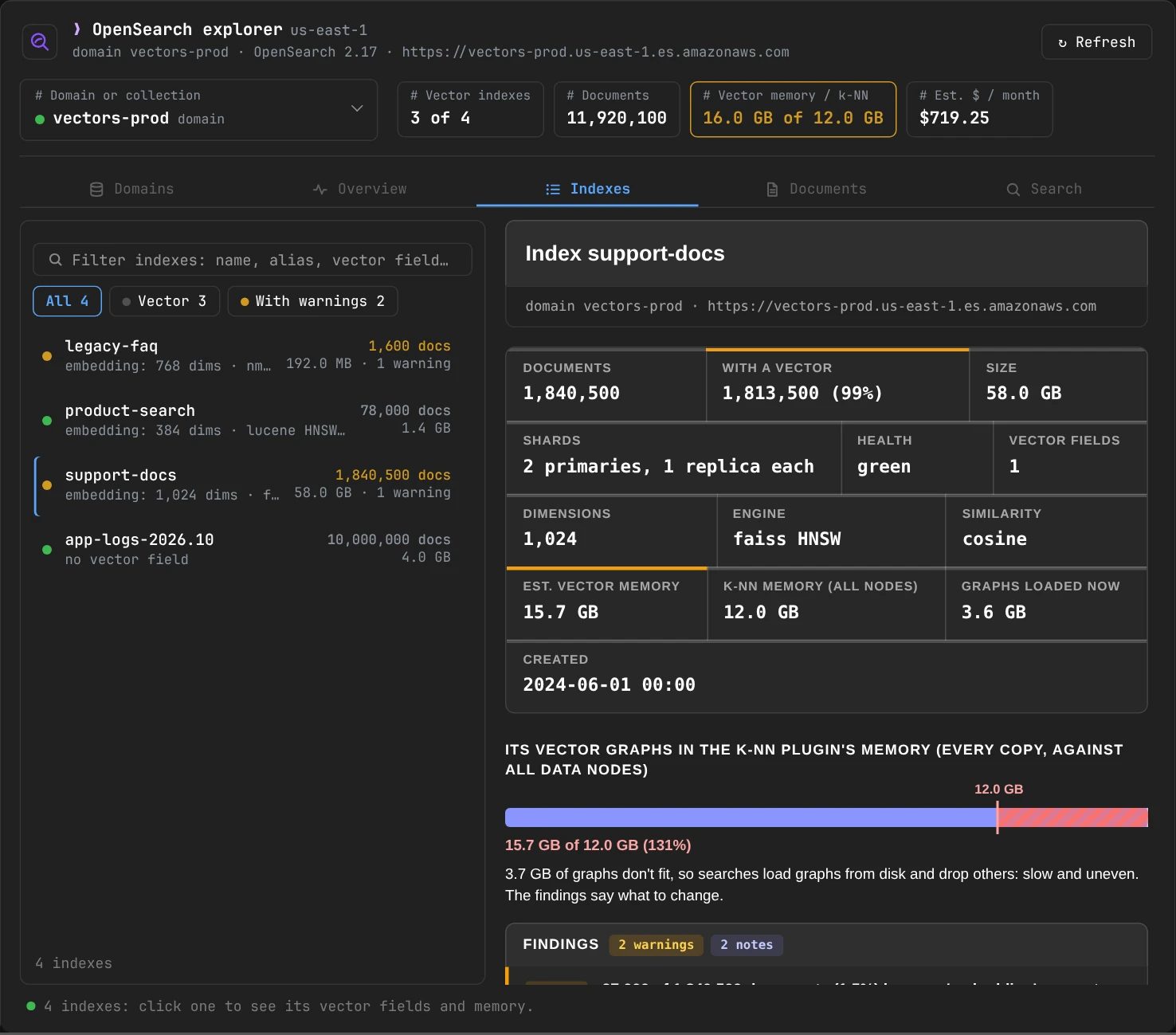
support-docs in the Indexes tab: 27,000 documents have no vector, and the graphs don't fit in the k-NN memory.
A sample of its documents
The Documents tab reads a random sample of the index, the documents without a vector first.
The Documents tab reads a random sample of the index: how healthy its vectors are (sizes, lengths, all-zero vectors, repeats) and a line per document, the ones without a vector first. Click one to see its text and fields, its vector summarized; ≈ Nearest documents searches for the ones closest to it.
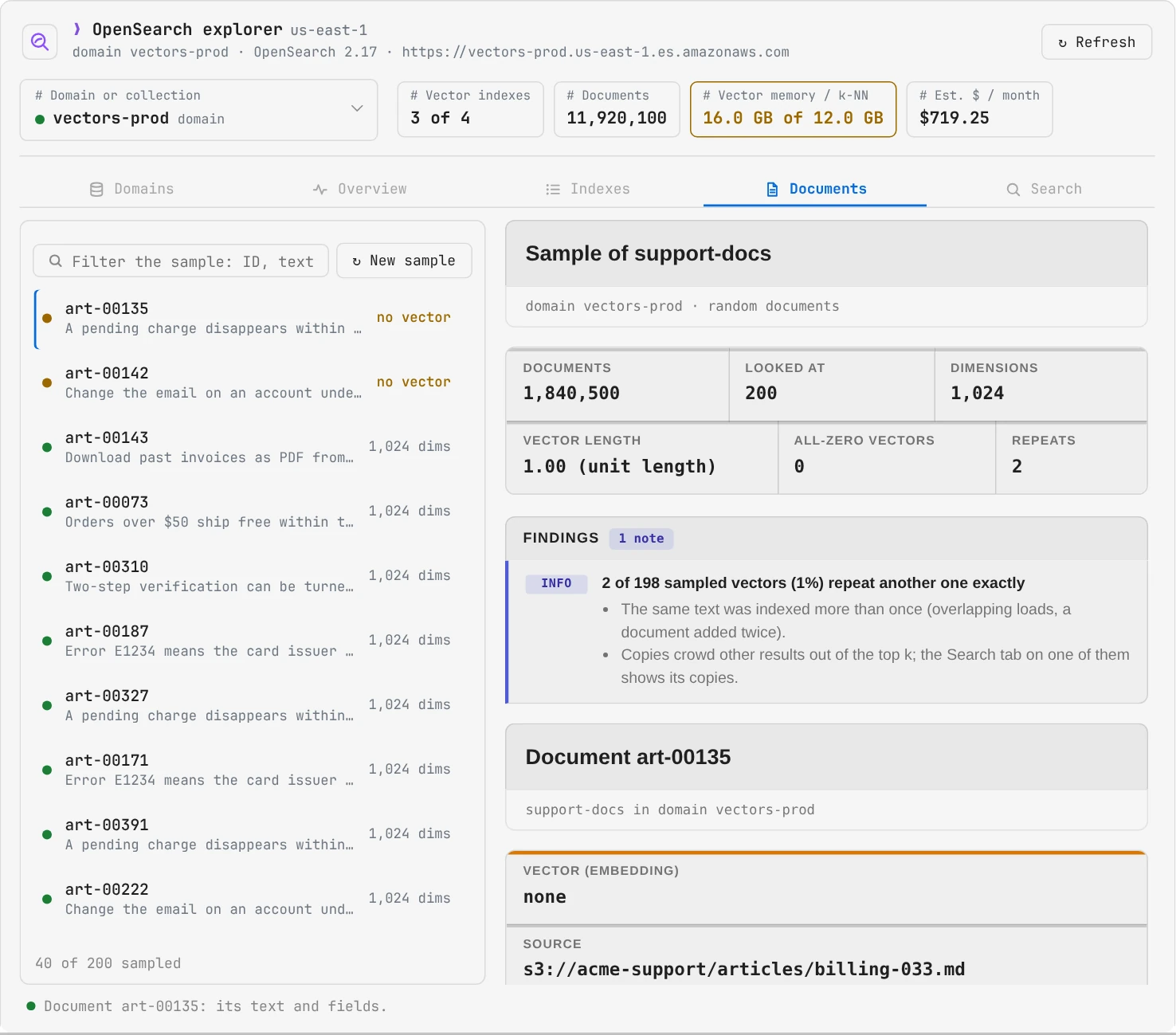
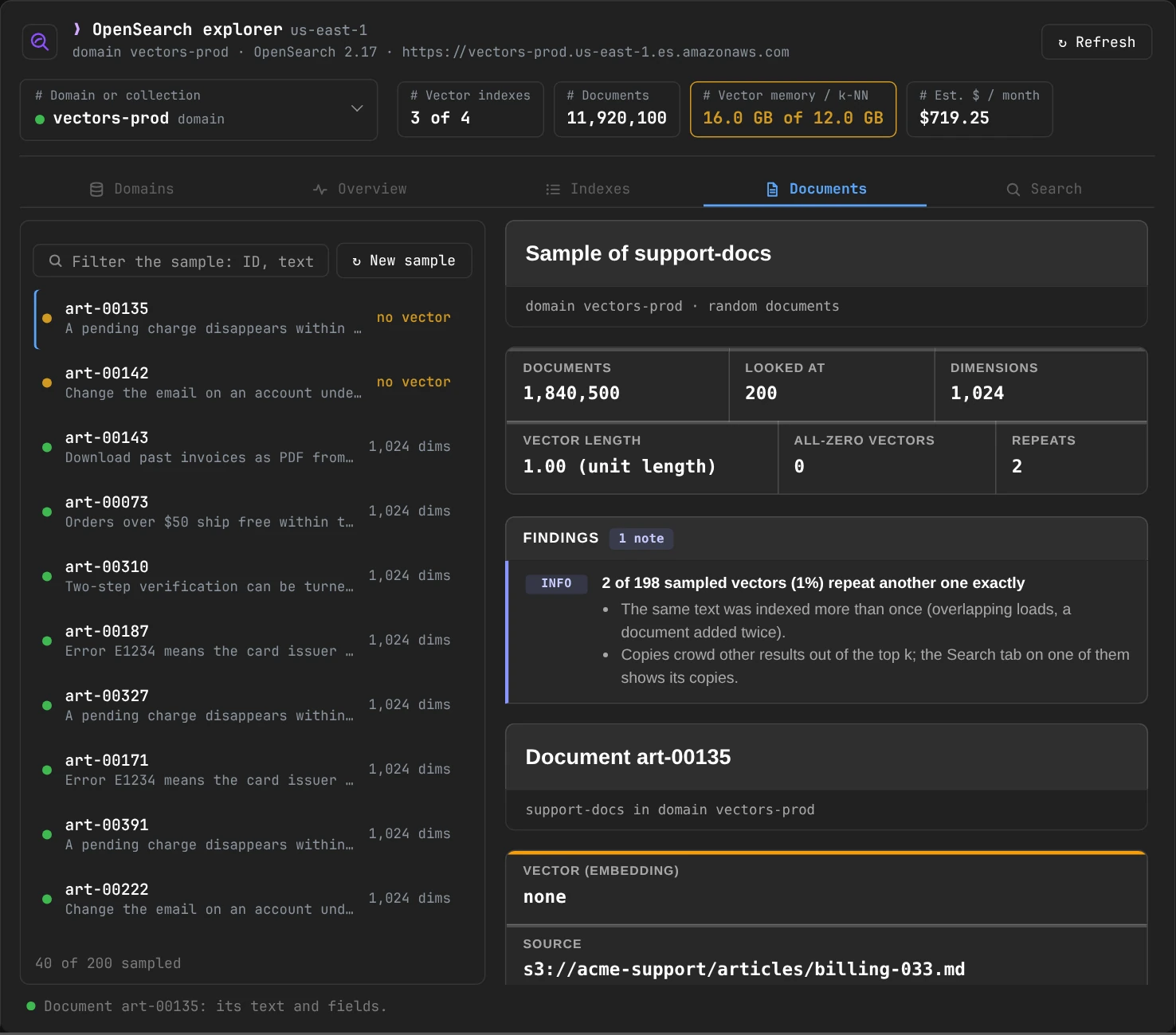
A document the search can never find: it has no embedding.
↻ New sample reads another one.
Search
The Search tab asks for the documents nearest a question, or nearest one of its documents, as your application's search would.
The Search tab asks for the documents nearest a question, embedded with a Bedrock model that fits the index's vectors, or nearest one of its documents (Like a document). The results are on the left, best first, each opening in the Documents tab, and the search as search() shows it on the right, with what the scores mean and the search as Python.
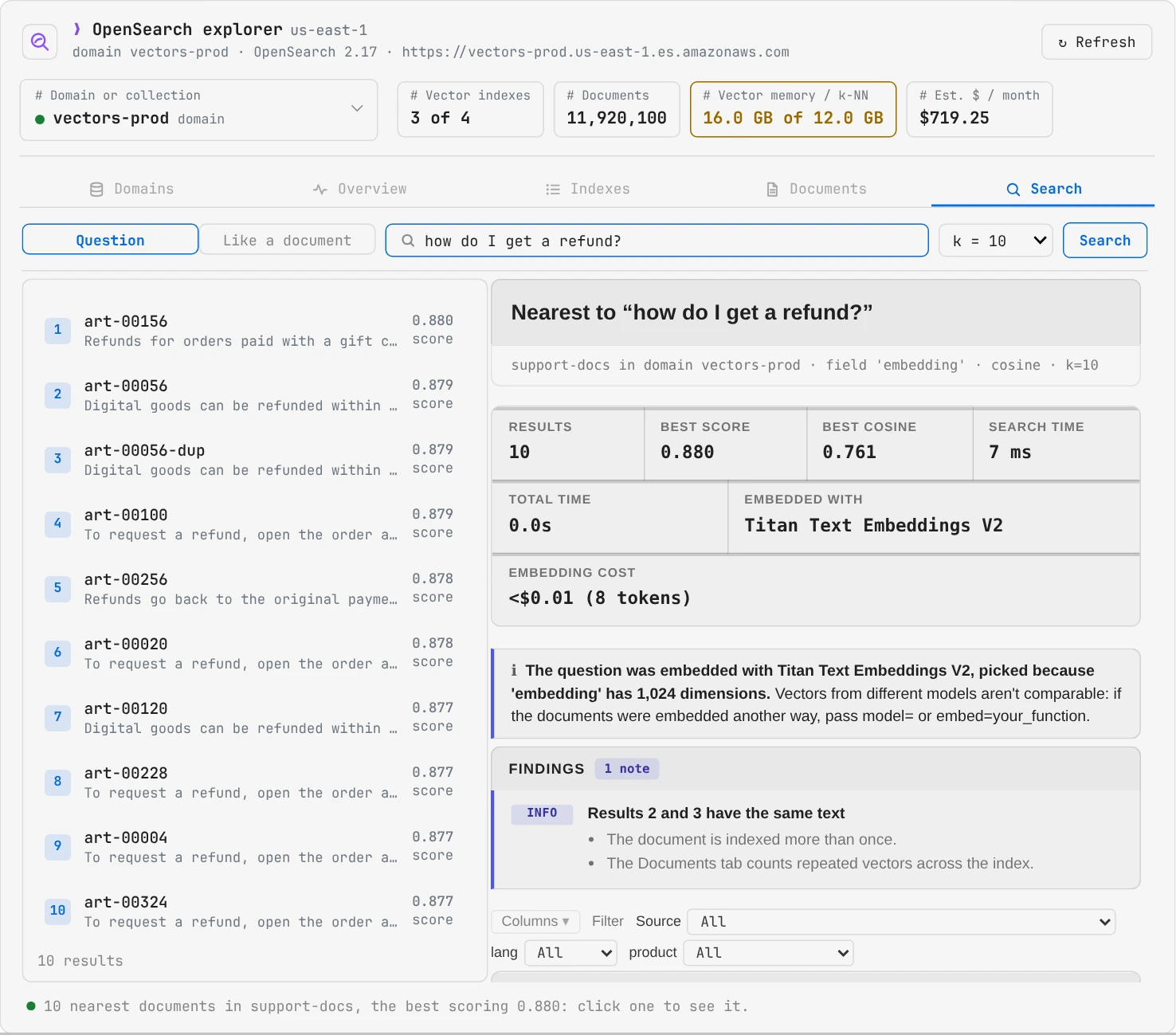
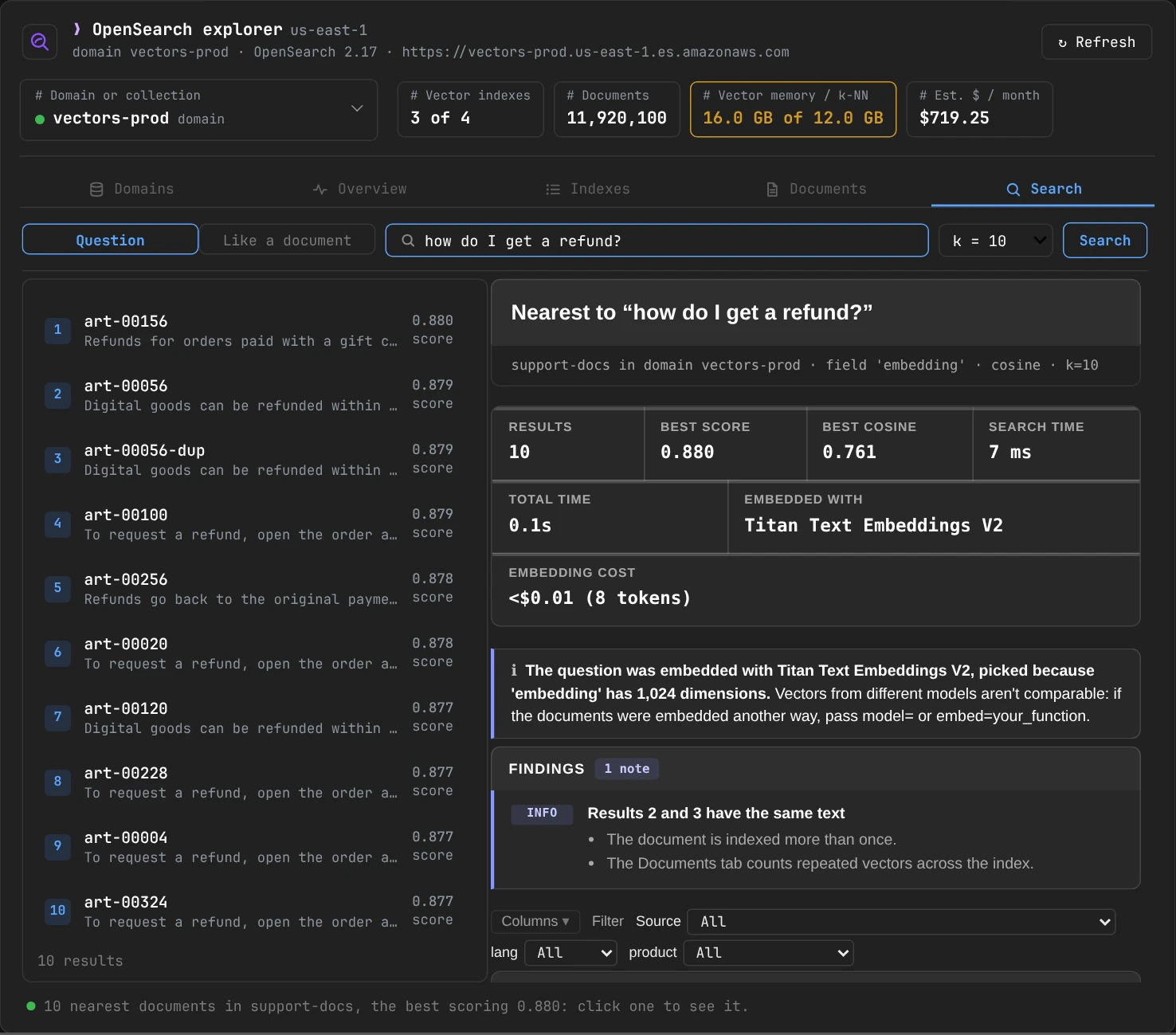
"how do I get a refund?" in the Search tab: the nearest articles, and two of them indexed twice.
x.search("a question", model="...") picks the embedding model when the index's vectors came from another one. Each search embeds the question once with Bedrock, for far less than a cent, and the OpenSearch guide says how to read the scores.
That's the guide. Everything below is reference for when you need it: how the window reads, and every command.
From code
The window is an object you can drive: what a click does, a command does too.
x = ui.explore()
x.open("vectors-prod/support-docs")       # a domain, a collection, or an index in one
x.index("support-docs")                   # an index of the one shown, in the Indexes tab
x.document(doc_id)                        # a document of the sample, or of the last search, by its _id
x.search("how do I get a refund?")        # the nearest documents; like=doc_id for a document's
x.refresh()                               # read everything again (the ↻ button)
How the window reads
AWS and OpenSearch are read off the notebook's event loop, so a click returns at once: the domains and collections first, then the one you pick with its indexes, then the index worth a look (the vector index with the most warnings, else the biggest). The sample is read the first time you open the Documents tab, and again with ↻ New sample. Pick another domain or index while one is still being read and the first one's result is dropped when it comes back.
Command reference
| Command | What it does |
|---|---|
explore(where=None, tab=None, region=None, profile=None, height=None) |
Opens the window and returns it; ui.explore(...) on an OpenSearchView takes the same |
x.open(where, tab=None) |
Shows another domain or collection, or an index in one ("vectors-prod/docs"), on tab when one is named |
x.index(name) |
Opens one of the shown domain's or collection's indexes in the Indexes tab |
x.search(question=None, like=None, k=10, model=None) |
The k documents nearest a question, or with like= nearest one of its documents, in the Search tab |
x.document(doc_id) |
Shows a document in the Documents tab |
x.refresh() |
Reads everything again (the ↻ button) |