 aws-analyzer · s3_explorer.py
Click through your S3 buckets like a file explorer
One call, S3Explorer(), turns a notebook cell into a file explorer for S3. Your buckets and folders are on the left; click one to open it. Click a file and the right shows what's inside: a table's first rows, a PDF's pages, a Word file with its pictures, an archive's contents. No paths to type, no commands to remember.
- Two files, boto3 + ipywidgets
- Read-only: never changes your data
- Opens folders of millions of files
- Plain text outside Jupyter
Every example uses a bucket called acme-ml-data; use your own bucket names. The screenshots are the real explorer in JupyterLab, run against a demo bucket with synthetic data. For reports you run from code (costs, search, duplicates, lifecycle rules, deleted files), see the S3 guide.

S3Explorer(): from your buckets to a Parquet file's first rows, a Word document, and every model file below a folder, one click at a time.
Set up in SageMaker
The explorer builds on s3.py: the previews, the formatting and the AWS calls all come from it, and both come in the package.
-
Install the package, in a notebook cell (
[all]adds what the previews use: pandas, pyarrow, the PDF and Excel readers):%pip install "aws-analyzer[all]"No internet in the notebook (VPC-only mode)? On a computer that has internet, download the package and copy it to a bucket the notebook can read (
pip download aws-analyzer --no-deps -d wheels, thenaws s3 cp --recursive wheels/ s3://acme-ml-data/tools/wheels/), and install it from there:!aws s3 cp --recursive s3://acme-ml-data/tools/wheels/ wheels/ %pip install --no-index --find-links wheels aws-analyzer -
Open the explorer. It uses the notebook's IAM execution role, so there's nothing to configure.
from aws_analyzer import S3Explorer S3Explorer() # start from your buckets S3Explorer("s3://acme-ml-data/curated/") # or in a folder; S3 console links work too S3Explorer("s3://acme-ml-data/curated/features/churn/train.parquet") # a file's folder, with the file shown -
Optional: another AWS profile or region, a fixed height, or bigger zips:
from aws_analyzer import S3Analyzer

S3Explorer("s3://acme-ml-data/", profile="dev")   # another AWS profile (or region=)
S3Explorer(core=S3Analyzer(region="eu-west-1"))   # an S3Analyzer or S3View you already have
S3Explorer(height=720, page_size=200)            # 720px panes (else they fill the window), 200 rows a page
S3Explorer(zip_max_size="2GB")                   # zip folders up to 2 GB (100 MB by default)
S3Explorer(downloads="~/scratch/s3")             # save downloads and zips there (default: s3-downloads)
boto3 and ipywidgets. Both are preinstalled on SageMaker (Studio and notebook instances). Without ipywidgets, or outside Jupyter, each folder prints as a table instead, and open() moves around (see without the window).
Files are read by s3.py's preview, so they need the same optional packages: pandas and pyarrow for tables (preinstalled on SageMaker), and for Excel files, PDF text and PDF pages %pip install openpyxl pypdf pypdfium2 pillow. A preview that needs a package that isn't installed says which one.
Find your way around
The toolbar is at the top, the folder you're in on the left under a search box, and on the right whatever you clicked. The bar at the bottom counts what's listed and shows where you are.
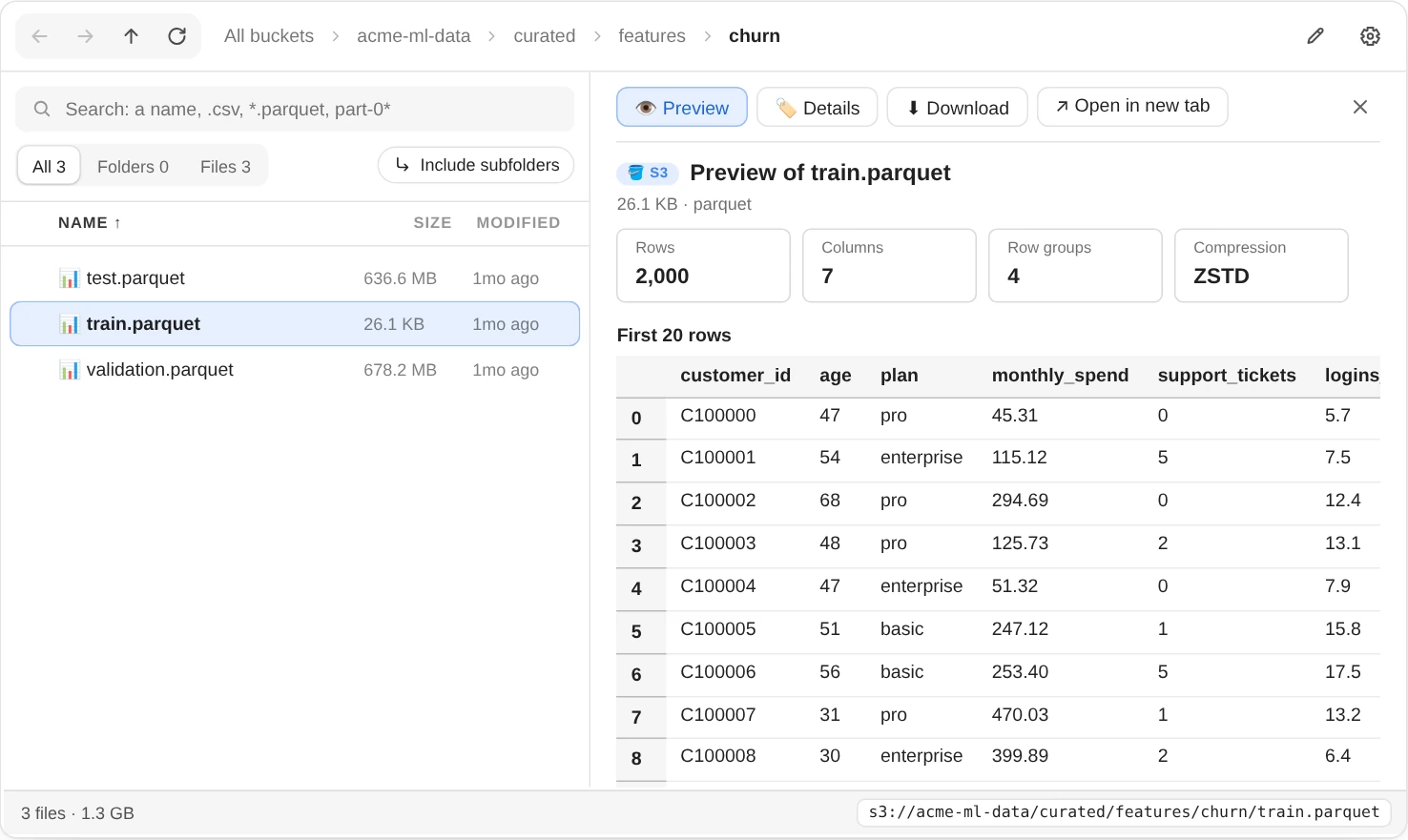
The folder on the left, the file you clicked on the right. One click on the path at the bottom selects it, ready to copy.
- Open a folder by clicking it. ← → go back and forward, ↑ goes up a level, and each part of the path at the top opens that folder; All buckets, its first part, goes back to your buckets.
- Go to a path with ✎: paste an
s3://path,bucket/folder, an S3 console link or an object URL, and press Enter. A path to a file opens its folder with the file shown. ✕ closes the box without going anywhere. - Find files with the search box over the list: a name, a file type such as
.csv, or only the folders. More below. - Sort by clicking Name, Size or Modified, and again for the other way. Sizes and dates sort biggest and newest first, folders stay on top, and names sort the way people count:
part-2beforepart-10. - Page through a long list with « ‹ › » under it. The list shows 100 rows at a time, and the bar says which ones, of how many:
2,401–2,500 of 3,000. - The bar at the bottom counts the folders and files listed and adds up their size. On the right it shows the path of the folder you're in, or of the file you clicked; one click selects it, ready to copy.
Each file's icon says what it is: 📊 tables (CSV, Parquet, Avro...), 📗 Excel, 📕 PDF, 📘 Word, 📙 PowerPoint, 📋 JSON, YAML and other config, 🖼️ pictures, 🎵 audio, 🎬 video, 📦 archives, 🧠 models, 🔢 NumPy arrays and 📓 notebooks. ❄ marks a file in Glacier.
Until you click a file, the right shows what the folder holds, from the listing it already has: how many folders and files, their size, the newest file, how many are archived, and the file types by size. These numbers cover the files at this level; Include subfolders counts everything below, and 📊 What's in here adds it all up.
Find files
Above the list are a search box and the buttons that narrow it. They cover the whole folder, not only the rows on screen or the first page S3 returns: a big folder is listed in the background as soon as it opens. Typing doesn't ask S3 for anything, and they combine: the .csv files whose names have 2025 in them, below this folder.
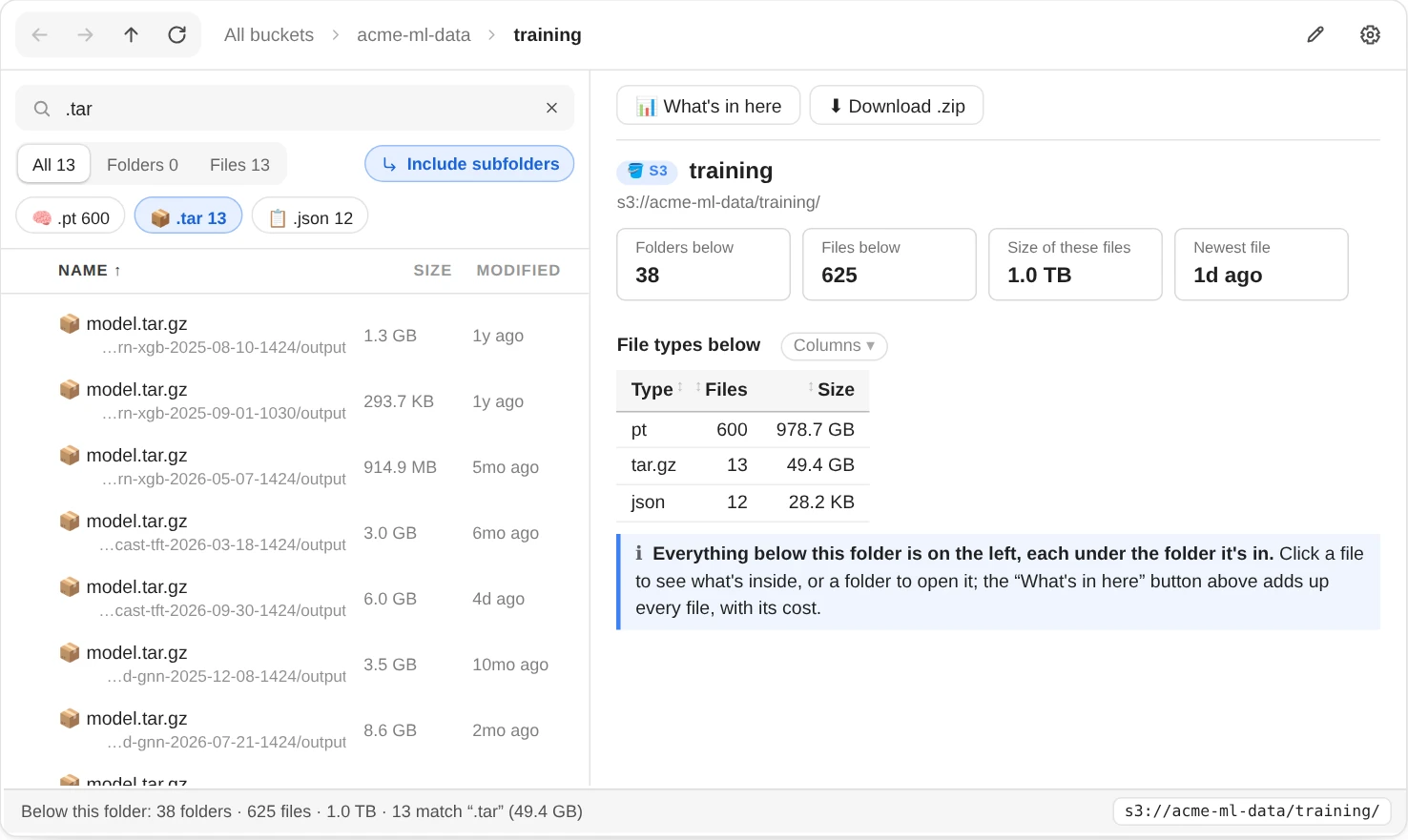
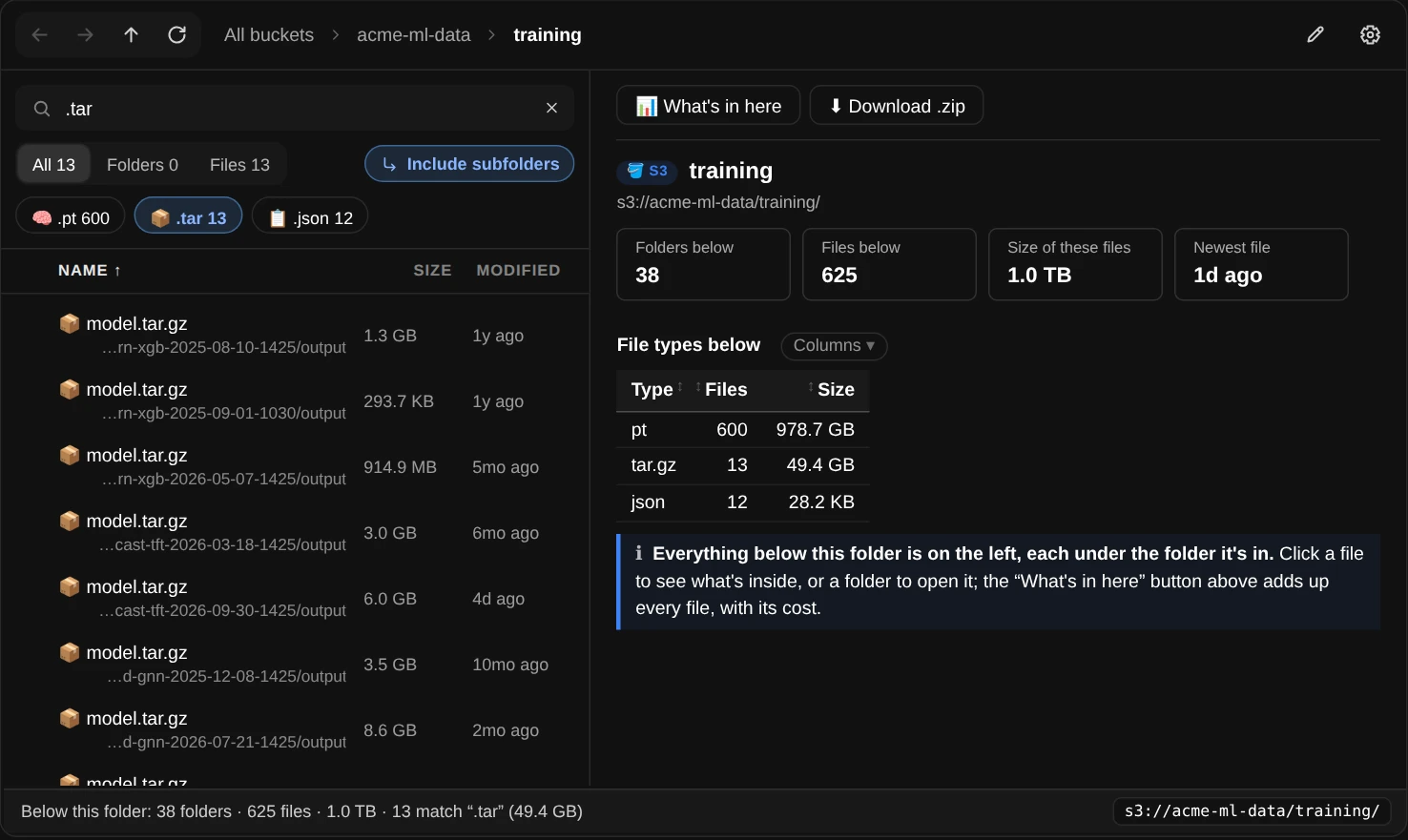
.tar with Include subfolders: every model artifact below training/, each under the run it came from.
- Search by name by typing part of it, in any case. Several words must all be in the name (
churn train), and*?make a pattern for the whole name (part-0*). - Search by file type by typing it with its dot:
.csv,.parquet, or.csv .jsonfor either. A type also finds its compressed files (.csvfindsdata.csv.gz) and its other spelling (.jpgfinds.jpeg);*.csvworks too. Folders have no type, so they drop out. - Click a type instead: under the search box is a chip for each file type here, with how many files have it, the most common first (+N more shows the rest). A click writes
.csvinto the search box, so you can see and change what it did; click another to add it, or the same one again to take it out. - Show only folders, or only files with All, Folders and Files. Each says how many of its kind match the search. It stays on as you open other folders, like the sort, so Folders walks down a tree of folders without the files.
- Include subfolders lists everything below the folder, not only its first level, with the folder each file is in under its name. Then the search, the chips and the sort cover all of it: every
.parquetfile in a dataset's partitions, the biggest or newest files anywhere below (sort by Size or Modified), or a folder by name. It lists 10,000 files at a time (Load more from S3 lists the next), one S3 request per 1,000, and the right shows what they add up to. - ✕ in the search box clears it. Opening another folder starts with an empty search and only its first level.
When nothing matches, the note under the list says why and offers the fix: Search the subfolders too when it's only at this level, or Show the 25 files when Folders hides them. With a search, the bar at the bottom also adds up how many match and how big they are.
Look inside a file
Click a file and the right shows what's inside it, read by the same preview as the S3 reports: a table's first rows, a Parquet file's schema and row groups, a JSON file's fields, a PDF's first pages as they look, a Word file laid out with its pictures, a picture, an archive's contents, a model's tensors. Every file type s3.py reads works here. The buttons above it do the rest:
| Button | What it does |
|---|---|
| 👁️ Preview | What's inside the file (the preview report) |
| 🏷️ Details | Its size, dates, storage class, encryption, version, metadata and tags (the head report) |
| 📖 Read all | For a PDF, Word or PowerPoint file: the whole document, page by page or slide by slide (the document report) |
| 📄 Text | For a PDF: its words laid out to read, with headings, paragraphs and lists, 50 pages at a time |
| ⬇ Download | Saves a copy in s3-downloads, next to the notebook (the download report; ⚙ changes the folder) |
| ↗ Open in new tab | Opens the file in a new browser tab: PDFs, pictures, sound, video and text show there, even when they were stored as a generic type, and other files download to your computer. Its link works for an hour: right-click it to copy the link for someone without AWS access, or run x.ui.link(path) to see it written out |
| ▾ Expand all | For a JSON file: opens every object and array in the tree at once, instead of a click on each. It stays on for the next JSON files you open, until you click it again. Long strings stay collapsed to their start; click one to read it |
| ✕ | Closes the file and shows the folder again |
Clicking through files doesn't wait. In a notebook, previews and details load in the background: each click shows its file as soon as it's read, and files you clicked past are skipped instead of holding you up. Reports you've opened are kept, so going back to a file shows it at once; ↻ reads the folder and its files again.
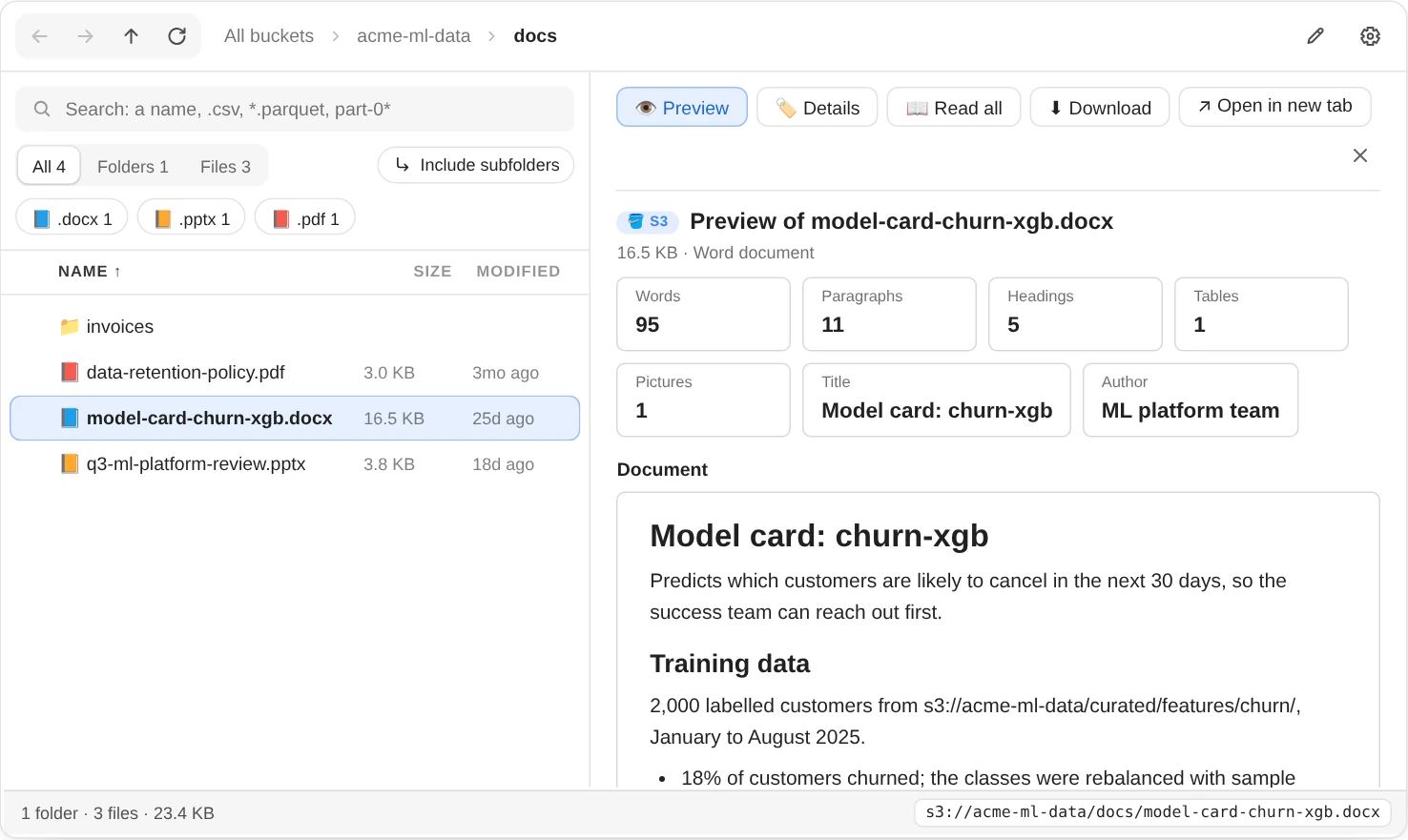
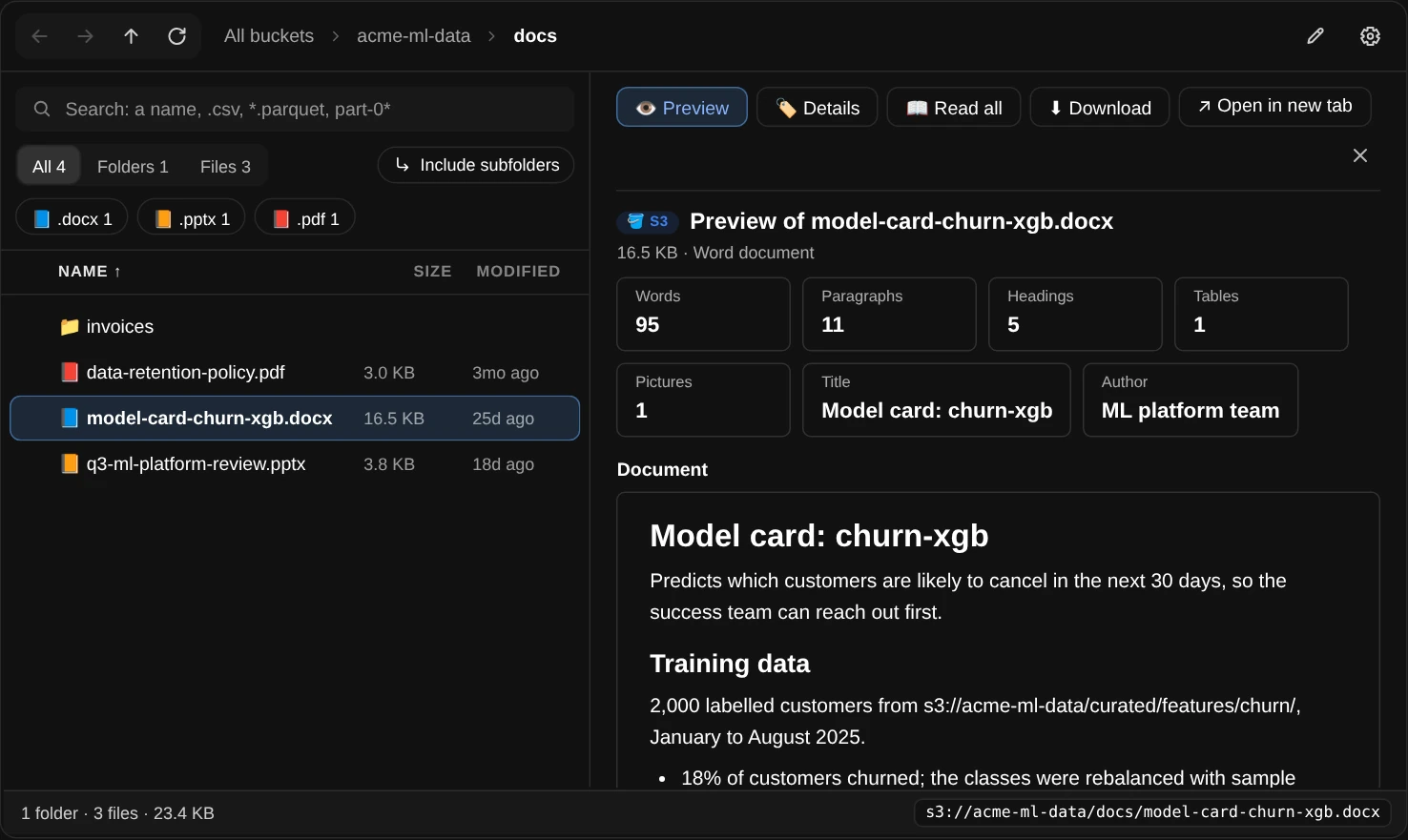
A Word file's first paragraphs; 📖 Read all shows the whole document, pictures in place.
Read a PDF, as it looks or as text
📖 Read all on a PDF shows its pages as they look, 20 at a time, with each page's text folded underneath. Buttons under the last page show the 20 before and after. Click a page to see it as big as the notebook: ‹ › step to the pages before and after, and ✕ (or a click on the page) goes back.
📄 Text shows its words instead, 50 pages at a time, laid out to read like a web page: headings (from the font sizes), paragraphs joined back up from the PDF's lines, bullet and numbered lists, and a thin line where each page starts. The running headers, footers and page numbers are left out, and a note under the text says which. It's the quickest way to read a long report, or to check what a knowledge base or a model will get from a PDF. A page without text (a scan) says so; 📖 Read all shows it as a picture. A PDF only places lines of text on a page, so the layout is worked out: lists drawn as shapes read as a paragraph, and a table reads as one line per row (see the S3 guide).
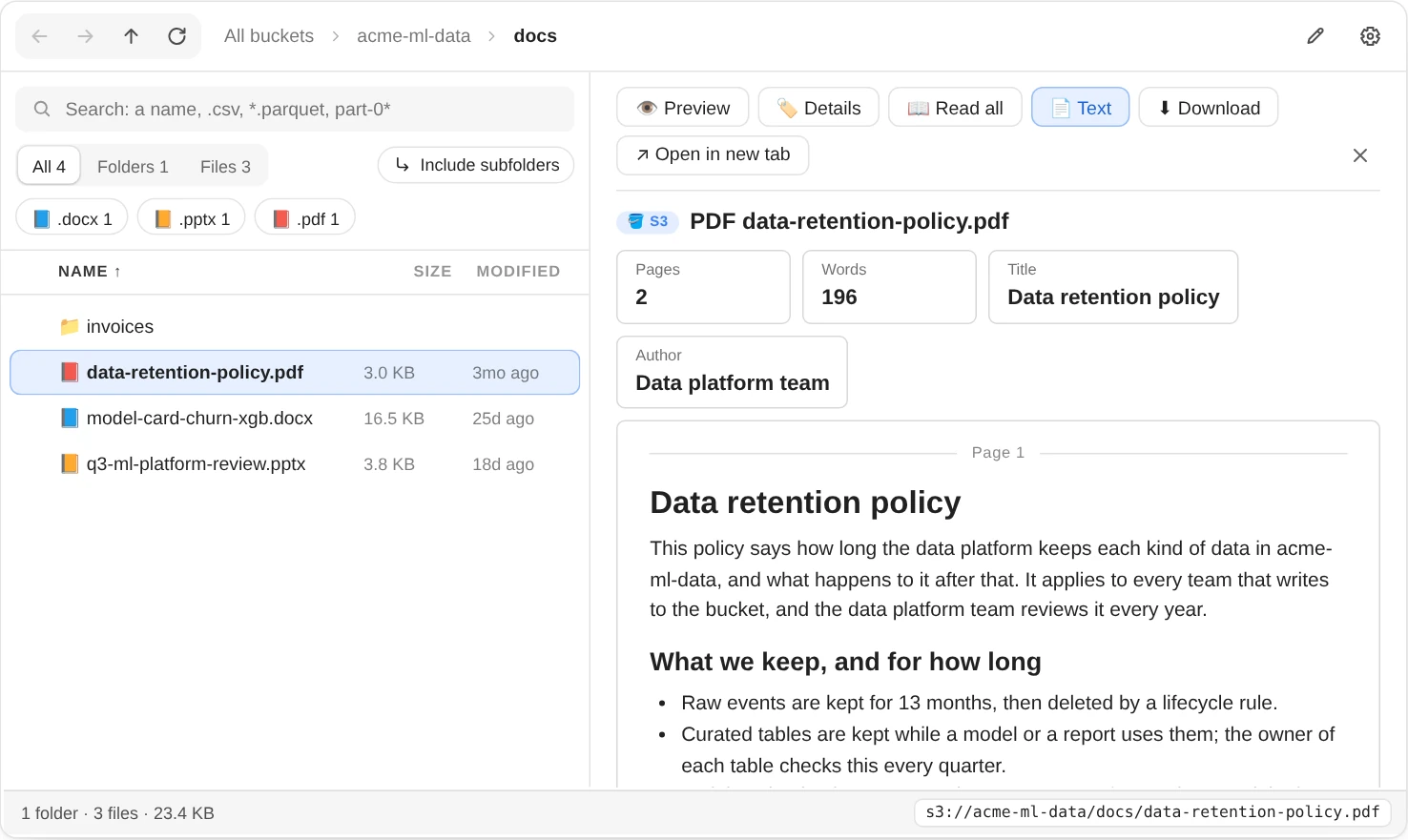
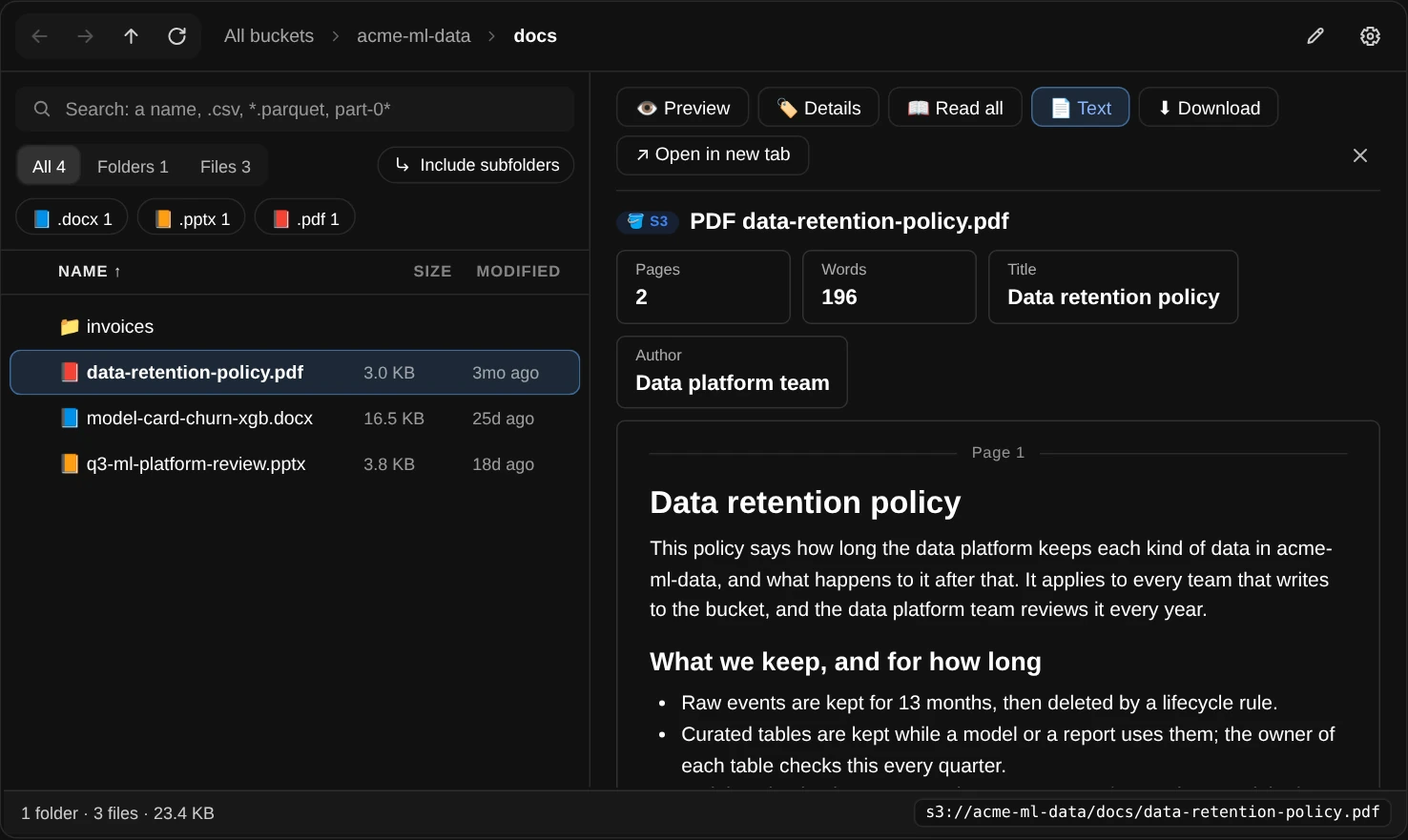
📄 Text on a two-page PDF: the words to read, without the header and page numbers repeated on every page.
📄 Text needs pypdf, and drawing the pages also needs pypdfium2 and pillow (%pip install pypdf pypdfium2 pillow); without them, the button says what to install. Word and PowerPoint files need nothing extra.
Files in Glacier
Files in GLACIER or DEEP_ARCHIVE are marked ❄, and can't be read until they're restored. Opening one says how long a restore takes (3 to 5 hours for GLACIER, up to 12 for DEEP_ARCHIVE) and shows the command that makes it readable for 7 days, ready to copy:
aws s3api restore-object --bucket acme-ml-data --key raw/2021/events.csv \
    --restore-request Days=7
The explorer never runs it: a restore costs a retrieval fee, so that's your call.
Folders and buckets
The buttons above the right pane change with where you are:
| Where | Button | What it shows |
|---|---|---|
| In a folder | 📊 What's in here | Every file below this folder, not only this level: sizes, file types, the biggest files and folders, the monthly cost, and findings (the summary report). It lists everything below, so a big folder takes a while; a progress bar shows how far it's got |
| In a folder | ⬇ Download .zip | Everything below this folder as one .zip (see below) |
| At a bucket's top level | 🛡️ Bucket settings | Versioning, encryption, public access, lifecycle rules and the policy in plain English, and what's risky (the bucket_info report) |
| On your buckets | 🪣 Every bucket | Each bucket's size, monthly cost and security warnings, side by side (the overview report) |
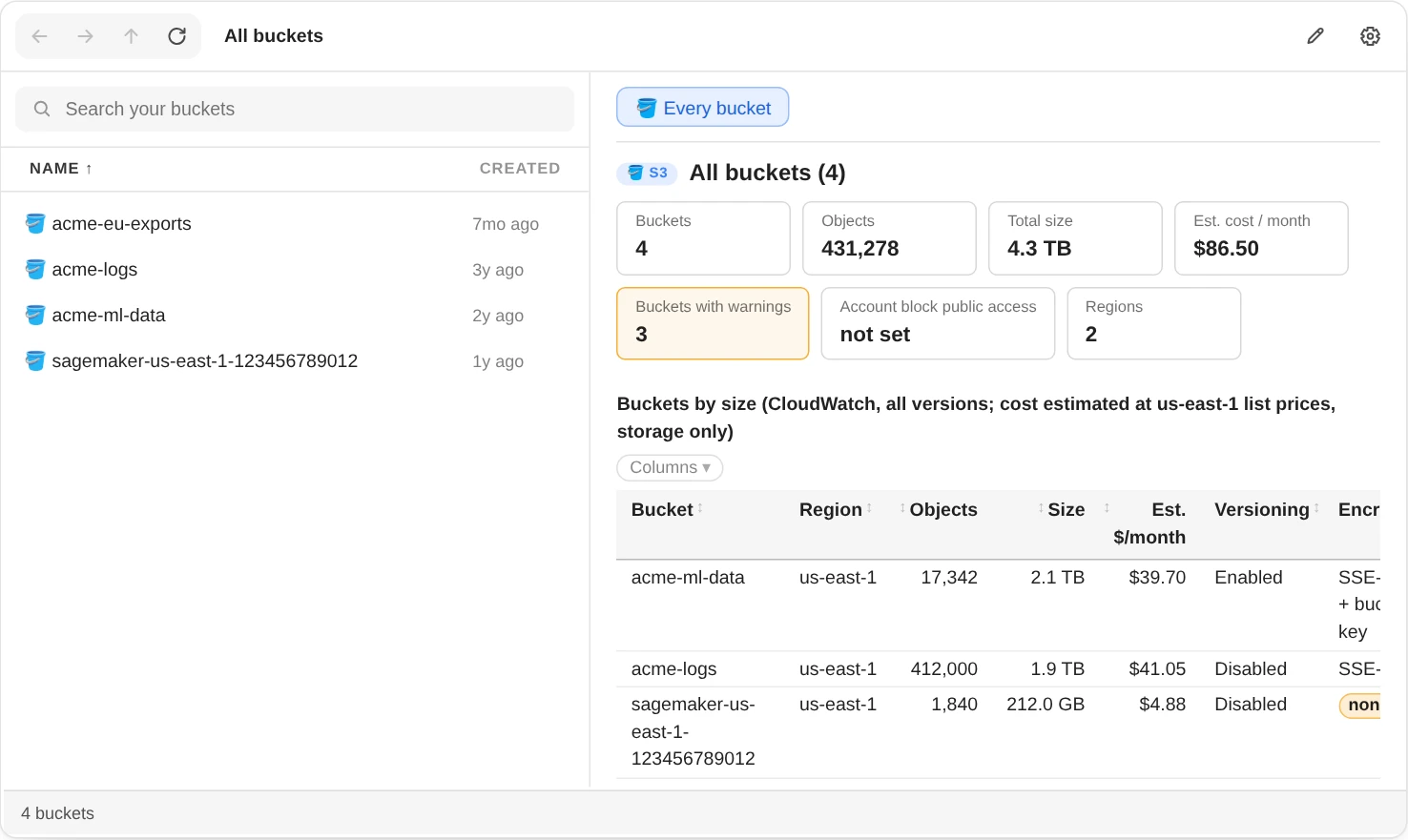
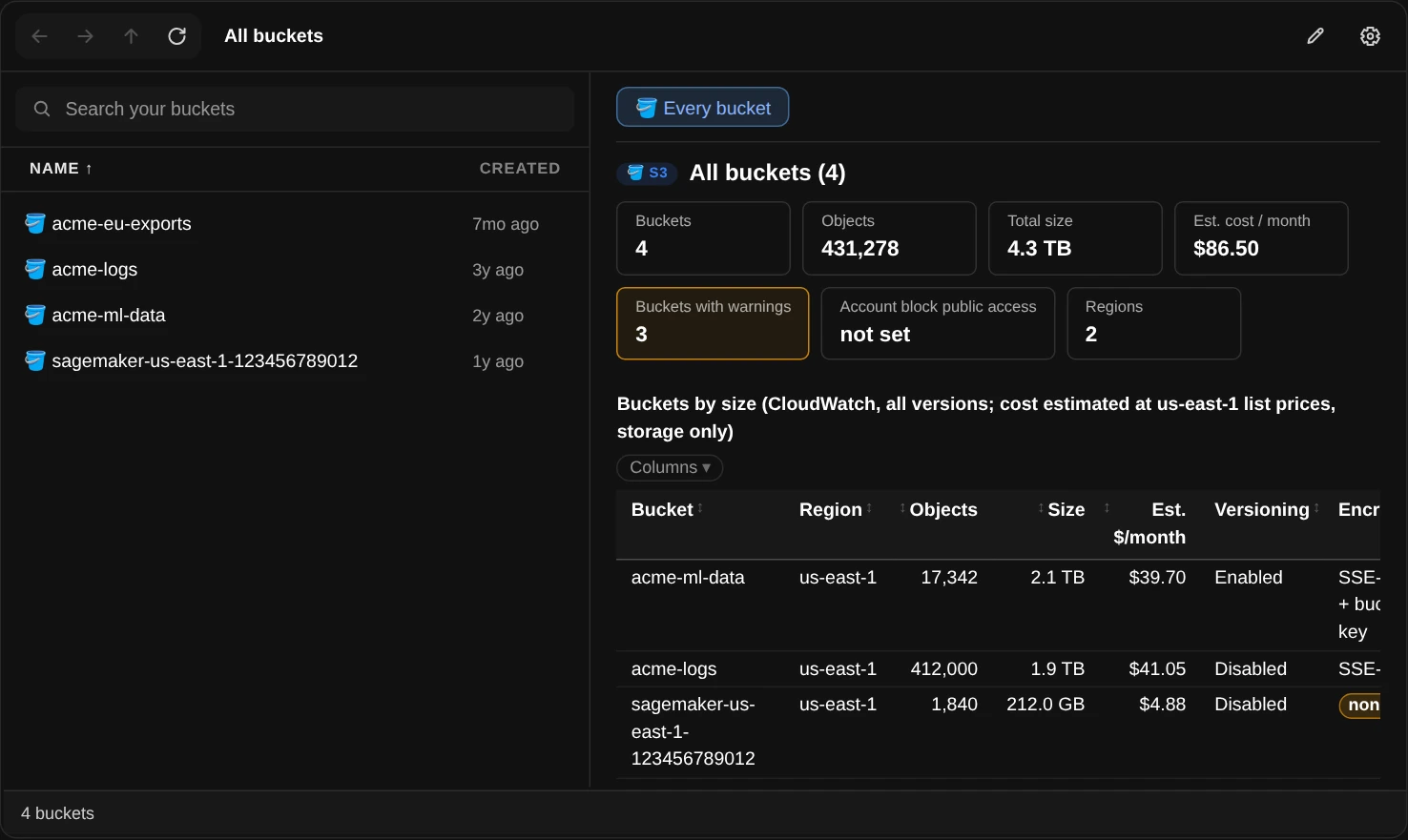
S3Explorer() starts from your buckets; 🪣 Every bucket compares their size, cost and security settings.
Download a folder as a .zip
⬇ Download .zip packs everything below the folder you're in into one .zip in s3-downloads, next to the notebook, named after the folder. First it checks, like download_zip(), that the folder is within 100 MB and 10,000 files, that there's room on the disk and in memory, and that you can read the files. If a check fails, it says which and writes nothing. Files in Glacier are left out, and the report says how many. To get the zip onto your computer, right-click it in JupyterLab's file browser and choose Download.
⚙ at the top right changes the limits and the folder downloads and zips go to (Enter in a box saves, like Save). They last until the kernel restarts. To start with others:
x = S3Explorer(zip_max_size="2GB")   # folders up to 2 GB
x.zip_max_files = 50_000             # and up to 50,000 files
x.downloads = "~/zips"               # where ⬇ Download and the zips save; made with the first one
The folder is the same one S3View's download() uses, so x.ui.downloads() in a cell lists what you've downloaded and how much disk it takes, and x.ui.clean_downloads() deletes it.
Download some files
To download a few files and not the whole folder, tick them and zip them together:
- Tick the files. Point at a row and a checkbox shows on its left; click it. Once something is ticked, every row shows its checkbox. The one in the header ticks everything listed, so a search and one click selects, say, every
.csvin a dataset's partitions (with Include subfolders). You can tick folders too: they go in with everything below them. - Click ⬇ Download selected in the bar under the list. The bar also says how many are ticked and how big they are; Clear unticks them.
- Check the name and click ⬇ Download. The right shows what goes in the zip and whether it's within the limits, and suggests a name from the folder and how many files there are, such as
churn-12-files.zip. Change it if you like (Enter downloads too). The explorer never replaces a file: when that name is taken, it suggestschurn-12-files-2.zip.
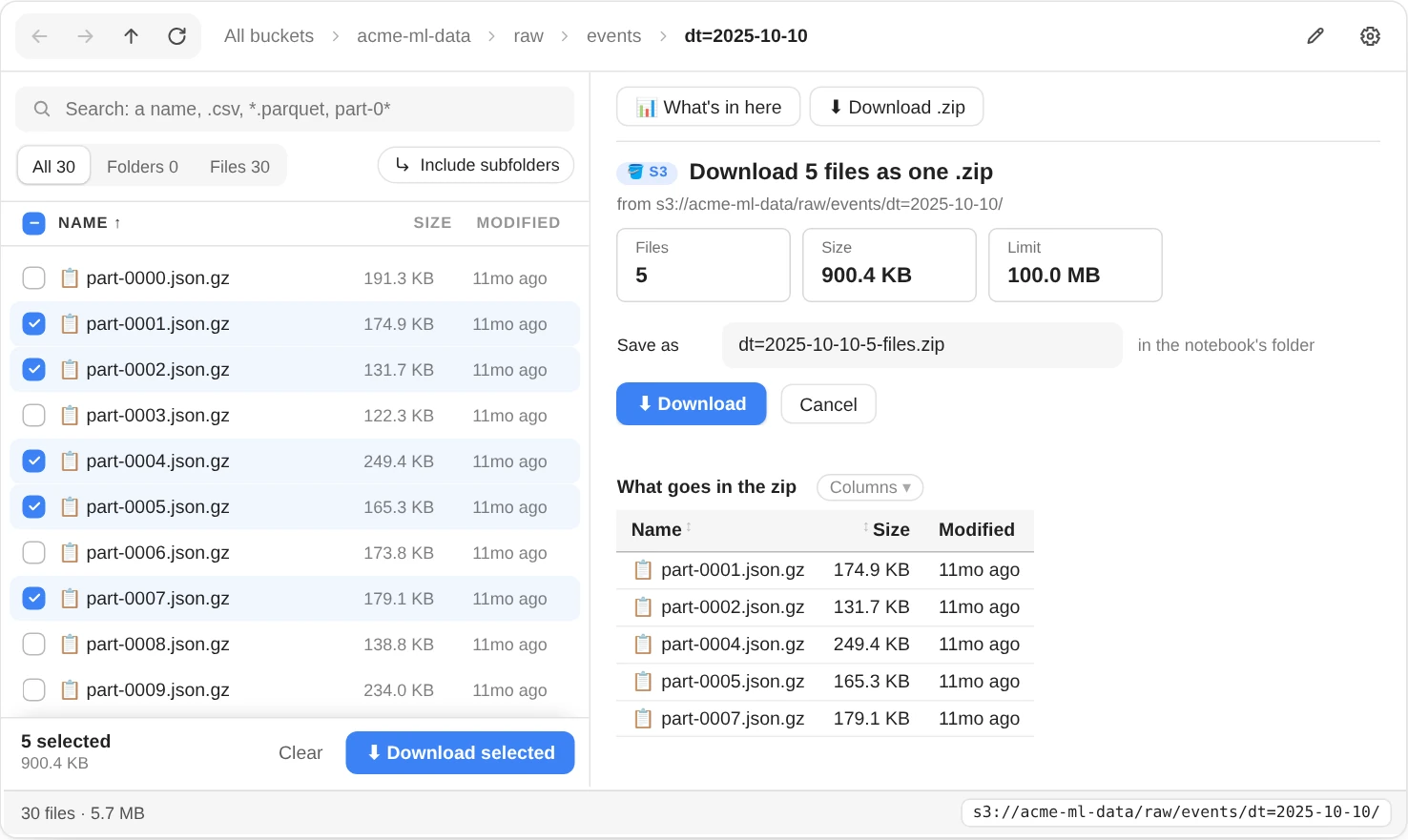
Five files ticked, one .zip with a name that says what's in it.
The zip holds the files as they're laid out below the folder they share, so files from different folders keep their paths and never clash. It goes through the same checks as a folder's (size, file count, disk space and read access), and ⚙ sets the same limits. Opening another folder starts a new selection; the search, the sort and ↻ keep it. From code, x.picked lists what's ticked, and x.ui.download_zip(x.picked) zips it.
Big folders
The explorer lists one level at a time, never the whole bucket, so a folder opens in a moment even in a bucket of billions of files.
- S3 lists a folder 1,000 entries per request. The explorer shows the first 1,000 at once, then lists the rest in the background, up to 10,000 entries (about a second per few thousand). Meanwhile you can click, sort and search; each page that comes in updates the list, the counts, the type chips and your search, and the bar at the bottom says Listing… with a spinner. Opening another folder stops it, and coming back carries on from where it stopped.
- So the search, the sort and the counts cover the whole folder: a file that's the 2,500th in S3's order is found by typing part of its name, and Size puts the biggest file in the folder on top, not the biggest of the first 1,000.
- The list shows 100 rows a page (
page_size=); « ‹ › » under it move between pages, and the bar says which rows these are, of how many. - A folder of more than 10,000 entries stops there: the counts end in +, and the right says so. Load more from S3, at the end of the list, lists the next 10,000. Look up finds a name past what's listed: type the start of it in the search box (
2025-09-for a date partition), and it asks S3 for the names that start with it. To list more at once, setx.nav.list_limit = 50_000before opening the folder. - Include subfolders lists the files below the folder the same way, in the background, 10,000 at a time; Load more from S3 lists the next 10,000.
- Opening a file by its path (
S3Explorer("s3://…/img_02750.jpg")) finds it however far down the folder it is. - Folders you've opened are kept, so going back is instant. ↻ lists the folder again, to pick up files added or removed since.
Listing is cheap: S3 charges $0.005 per 1,000 list requests (us-east-1 list price), so the 10 requests for 10,000 entries cost $0.00005. Only 📊 What's in here and ⬇ Download .zip read everything below a folder; the list stops at 10,000 entries until you ask for more.
From code
The explorer is an object you can drive from other cells. Keep it in a variable:
x = S3Explorer("s3://acme-ml-data/")
x.open("s3://acme-ml-data/raw/events/")   # the toolbar from code: open, back, forward, up, refresh
x.back(); x.forward(); x.up(); x.refresh()
x.filter(".parquet", subfolders=True)      # the search box and its buttons: every Parquet file below this folder
x.filter(kind="folders")                   # only the folders here; x.filter() shows everything again
x.picked                                   # what's ticked in the list, as s3:// paths
x.location                                 # the folder you're in, such as 's3://acme-ml-data/raw/' ('' on your buckets)
x.selected                                 # the file shown on the right, or ''
x.ui.summary(x.location)                   # any S3View report about where you are, in its own cell
x.ui is an ordinary S3View on the same connection, so its reports appear under the cell you run them in and stay in the saved notebook. The explorer doesn't: it lives in the running kernel, so a reopened notebook needs its cell run again. x.nav is the S3Navigator behind the list.
Without the window
Outside Jupyter, without ipywidgets, or with S3Explorer(mode="text"), the explorer prints each folder as a table: what it holds, the file types, and its folders and files with their sizes and ages. open(), back(), forward() and up() print the next one, filter() prints what matches, and opening a file prints its preview.
The navigation as data
S3Navigator is the explorer without the UI: the same listing, history and cache, returning data instead of drawing it. A folder it can't list has the reason in folder.error instead of raising.
from aws_analyzer import S3Navigator

nav = S3Navigator()                                  # or S3Navigator(S3Analyzer(profile="dev"))
folder = nav.open("s3://acme-ml-data/curated/")      # Folder: entries, more, error
[(e.name, e.kind, e.size) for e in folder.entries]   # Entry: kind ('bucket', 'folder', 'file'), key, size, modified, storage_class
nav.more()                                           # the next 1,000 entries, when folder.more is True
nav.list_rest()                                      # the rest of the folder, up to 10,000 entries (nav.list_limit)
nav.lookup("2025-09-")                               # adds the names that start with it; returns how many were new
below = nav.below()                                  # everything below: every file and the folders between (10,000 at a time)
nav.more(below=True)                                 # the next 10,000, when below.more is True
nav.back(); nav.forward(); nav.up(); nav.refresh()
The functions behind it don't call AWS, so they work on anything:
from aws_analyzer.s3_explorer import parse_location, breadcrumbs, filter_entries, folder_stats

parse_location("https://us-east-1.console.aws.amazon.com/s3/buckets/acme-ml-data?prefix=curated/features/")
# ('acme-ml-data', 'curated/features/')
parse_location("https://acme-ml-data.s3.us-east-1.amazonaws.com/reports/q3.pdf")
# ('acme-ml-data', 'reports/q3.pdf')
breadcrumbs("s3://acme-ml-data/curated/")
# [('All buckets', ''), ('acme-ml-data', 's3://acme-ml-data/'), ('curated', 's3://acme-ml-data/curated/')]
folder_stats(folder.entries)                         # FolderStats: counts, size, newest and oldest file, types by size
filter_entries(below.entries, "churn .parquet", kind="files")   # what the search box and Files show
The others are parent_uri, folder_uri, sort_entries (folders first, part-2 before part-10; "path" for a tree), parse_filter (what a search asks for: its words, patterns and file types), count_types (the type chips: files and bytes per type), entry_icon and explain_list_error.
Permissions
The explorer only reads. A folder or bucket the notebook's role can't list shows a note that names the missing permission instead of an error, and you can still type the path of one you can read. This policy covers browsing and opening files:
{
  "Version": "2012-10-17",
  "Statement": [
    {
      "Sid": "BrowseS3",
      "Effect": "Allow",
      "Action": ["s3:ListAllMyBuckets", "s3:ListBucket", "s3:GetObject", "s3:GetObjectTagging"],
      "Resource": "*"
    }
  ]
}
| Permission | Used by |
|---|---|
s3:ListAllMyBuckets |
The list of buckets you start from. Without it, open a bucket by its path |
s3:ListBucket |
Listing folders, Include subfolders, Look up, 📊 What's in here and ⬇ Download .zip |
s3:GetObject |
Opening files: 👁️ Preview, 🏷️ Details, 📖 Read all, 📄 Text, ⬇ Download and ⬇ Download .zip, and the links ↗ Open in new tab opens |
s3:GetObjectTagging |
The tags in 🏷️ Details; without it, the rest of 🏷️ Details still shows |
kms:Decrypt on the key |
Files encrypted with SSE-KMS |
🛡️ Bucket settings and 🪣 Every bucket also read each bucket's settings, and its size from CloudWatch; the S3 guide's policy covers them and every other S3 report. To scope the policy down, give s3:ListBucket and s3:GetObject your buckets' ARNs, such as arn:aws:s3:::acme-ml-data and arn:aws:s3:::acme-ml-data/*, in a statement of their own: s3:ListAllMyBuckets only works with "Resource": "*".
Troubleshooting
The cell shows a table instead of the explorer, or “Error displaying widget”
Clicking needs ipywidgets in the kernel and its extension in JupyterLab. On SageMaker both are there. Elsewhere, run %pip install ipywidgets, restart the kernel and reload the browser tab. An explorer from before the notebook was reopened can't come back (it lived in the old kernel): run its cell again.
“Your AWS role isn't allowed to list this”
The notebook's role is missing s3:ListBucket on that bucket (or s3:ListAllMyBuckets, for the list of buckets). Ask for it (see permissions), or press ✎ and type the path of a folder you can read.
A file I know is there isn't in the list
If the bar at the bottom says Listing…, the explorer is still listing the folder: the file shows up when its page comes in. A folder of more than 10,000 entries is listed 10,000 at a time, and the search covers what's listed: type the start of the name in the search box and click Look up, or click Load more from S3 at the end of the list. If the file is in a subfolder, turn on Include subfolders; if Folders or Files is lit, click All. If the file was added after the folder was opened, press ↻. Names in S3 are case-sensitive.
A file marked ❄ won't open
It's in GLACIER or DEEP_ARCHIVE. The note on the right has the aws s3api restore-object command that makes it readable (files in Glacier). Run it, or ask whoever manages the bucket; when the restore has finished, press ↻ and click the file again.
A preview says a package is missing
Install it in the notebook's kernel, for example %pip install openpyxl for Excel, and click the file again.
A click on a row did nothing
The explorer ignores a click that comes within a third of a second after the list changed, because it was aimed at the rows that were there before (a double click on a folder would otherwise open whatever took its place). Click again.
The zip wasn't made
The report says which check failed. If the folder or the files you ticked are over a limit, ⚙ raises it (or untick some files). If the disk is full, free some space (the SageMaker guide's disk() shows what fills it) or zip a smaller folder.
Reference
S3Explorer(uri="", core=None, *, profile=None, region=None, height=560, page_size=100, zip_max_size="100MB", downloads=None, mode="auto", progress="auto") opens the explorer and returns it.
| Argument | What it does |
|---|---|
uri |
Where to start: a folder, a file (its folder opens with the file shown), bucket/prefix, an S3 console link or an object URL. Left out: your buckets |
core |
An S3Analyzer or S3View to use; without one, one is made from profile and region |
profile, region |
The AWS profile and region |
height |
The height of the two panes, in pixels |
page_size |
Rows on each page of the list; « ‹ › » under it move between pages |
zip_max_size |
The biggest folder ⬇ Download .zip packs; ⚙ changes it |
downloads |
The folder ⬇ Download and the zips save into: s3-downloads, next to the notebook, unless set; ⚙ changes it |
mode |
"auto": the clickable explorer in Jupyter, a text listing elsewhere. "widgets" or "text" to choose |
progress |
Progress bars for long reports: "auto", "plain" or "off", as for S3View |
| Command | What it does |
|---|---|
open(uri="") |
Goes to a folder, or shows a file in its folder; open() goes to your buckets |
back(), forward() |
← and → |
up() |
↑: the folder above |
refresh() |
↻: lists this folder again |
filter(text="", kind="all", subfolders=False) |
The search box and its buttons: names or file types (".csv .json"), kind="folders" or "files", and everything below with subfolders=True. It searches the whole folder, up to its first 10,000 entries, and in a bigger one also asks S3 for the names that start with text. filter() shows everything again |
location |
The folder you're in, or "" on your buckets |
selected |
The file shown on the right, or "" |
ui |
An S3View for your own cells: x.ui.summary(x.location) |
nav |
The S3Navigator behind the list |
picked |
The files and folders ticked in the list, as s3:// paths: x.ui.download_zip(x.picked) |
zip_max_size, zip_max_files |
The ⬇ Download .zip and ⬇ Download selected limits, which ⚙ edits |
downloads |
Where ⬇ Download and the zips save (the S3Analyzer's downloads folder), which ⚙ edits; zip_folder is its old name |