 Knowledge base explorer
bedrock_kb/explorer/
Click through a knowledge base: every file, how it was indexed, what a question finds
explore() turns a notebook cell into a window on a Bedrock knowledge base. Every file of its S3 data sources sits next to Bedrock's record of it, the problems first. Click one to see each step it took into the vector store and its chunks in order, or ask a question to see where it ranks.
- One install, ipywidgets already on SageMaker
- Read-only: never starts a sync
- Every file, one state each
- A file's chunks, in document order
The examples use support-docs, a knowledge base of support policies in the bucket support-docs-bucket, some tagged with a team and a year. The screenshots are the real window in JupyterLab on a simulated Bedrock, so scores and times are illustrative. For reports you run from code (answers with citations, filters, retrieval hit rate), see the Bedrock Knowledge Bases guide.
explore("support-docs"): find a file, ask whether it answers a question, search the whole knowledge base, then read its syncs.
Watch it run
Five steps in a notebook, from a knowledge base's files to which search settings suit a question: each command typed and run, and the window it shows, with what to notice. It plays as you scroll to it; click it to pause, or pick a chapter to jump to a step.
Full screen · Download as MP4, for Slack or a slide (light or dark, as this page is)
Open it
-
Install it in a notebook cell:
%pip install aws-analyzer -
Open the window. It uses the notebook's IAM role and region, so there's nothing to configure.
from aws_analyzer import BedrockKBView

ui = BedrockKBView()
x = ui.explore("support-docs")   # a name, ID or ARN; explore() picks the only one, or the first active one
Straight to a file, another region or a fixed height
from aws_analyzer.bedrock_kb import explore

explore()                             # the only knowledge base here, or the first active one
explore("support-docs")               # a name, ID or ARN
explore("support-docs", file="warranty.pdf")   # straight to one file's page
explore(region="us-west-2")           # another region (or profile="dev")
explore("support-docs", height=800)   # 800px pages (else the browser's height)
ui.explore()                          # from a BedrockKBView, on its knowledge base
The top of the window, and without ipywidgets
The window needs ipywidgets, which SageMaker notebooks already have (elsewhere, %pip install ipywidgets, then reload the browser tab). Without it, or outside Jupyter, explore() shows the same as reports: files(), file() and search_file().
The top of the window is the knowledge base field and its cards. Click the field for the region's knowledge bases, with a search box that finds one by its name, part of its ID (k7qj finds K7QJ2M4XNA) or its description; Enter picks the first, and a whole ID or ARN works too. The cards say how it's doing: how many files it has and how many are searchable, how many failed or are waiting for a sync, when the last sync ran, and what its vector store costs while idle. The tabs below hold the rest, and the line at the bottom says what's going on.
Start here
Four things to try in your first minute. Nothing you click starts a sync or changes a file.
What's wrong
- What needs fixing, and does a sync fix it? Read the Overview tab
- Which files failed, and why? Files, then the Failed chip
One file
- How was this file indexed? Click it in the Files tab
- Does a question find this file? Type the question on its page
What needs you
The Overview tab says how the files are doing in a sentence, then what to do about them, a card for each fix.
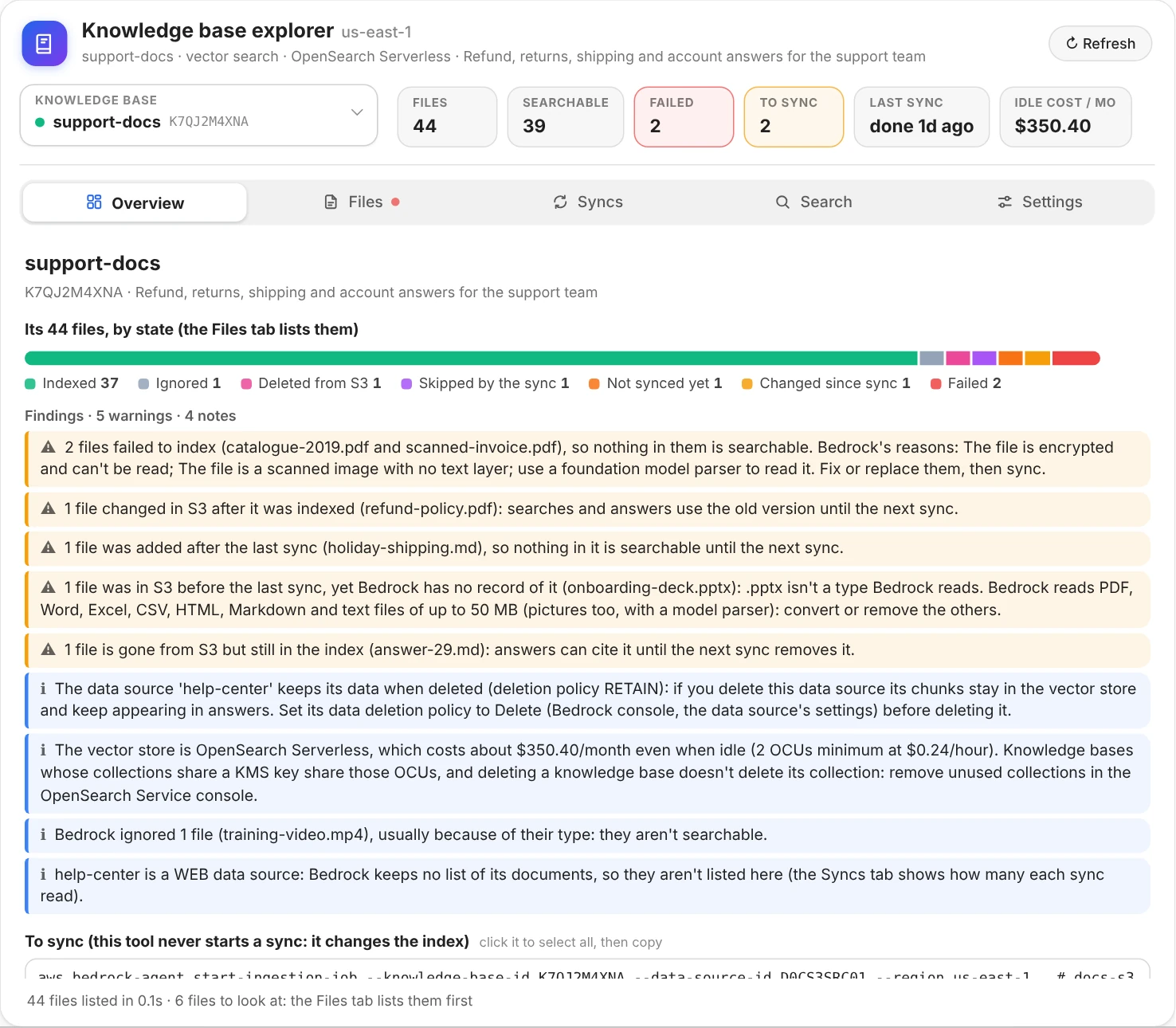
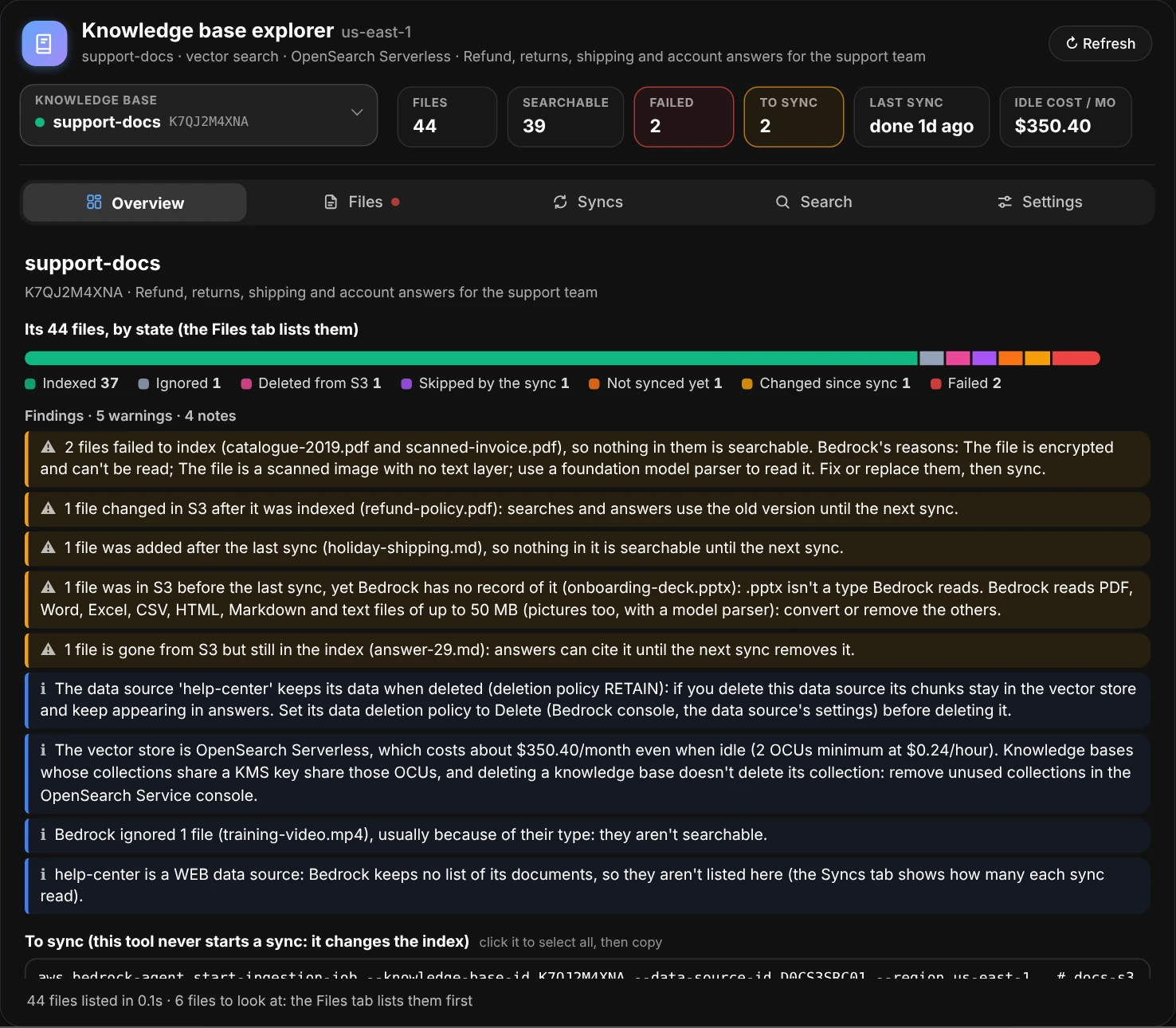
Overview: a sentence on the files, then what to do about them, a card for each fix: a sync per data source (with its command), the files to fix, and the files to convert. Below, out of the picture: how each data source becomes vectors, with each problem pinned under the step where it happens, and the recent syncs.
Every file, next to Bedrock's record of it
The Files tab gives every file one state, problems first: failed, changed since the sync, not synced yet, or indexed and searchable.
Search by name, folder or Bedrock's reason, click a state's chip for only those files, and ⬇ List saves the list's s3:// paths as a .txt file to download.
Every state, what it means and what to do
| State | What it means | What to do |
|---|---|---|
| Failed | Bedrock couldn't index it, for the reason shown: an encrypted PDF, a scan with no text layer, a file too big | The file's page says what usually fixes that reason, then sync |
| Changed since sync | It (or its .metadata.json) changed in S3 after it was indexed, so searches still find the old version |
Sync |
| Not synced yet | Added after the last sync, so nothing in it is searchable | Sync |
| Skipped by the sync | In S3 before the last sync, yet Bedrock has no record of it: usually a type Bedrock doesn't read, a file over 50 MB, or one in GLACIER | Convert, split or restore it, then sync |
| Deleted from S3 | Gone from S3, but still in the index, so answers can cite it | Sync, and the next sync removes it |
| Partly indexed | Only part of it, or of its metadata, was indexed | Its page says what's missing |
| Ignored | Bedrock skipped it on purpose, usually because of its type | Nothing, unless you meant it to be searchable |
| Indexing | Being indexed or removed right now | Wait for the sync to finish |
| Not checked | Past the first 10,000 documents of Bedrock's list | Open it: its own record is looked up |
| Indexed | Indexed, up to date and searchable |
How a file was indexed
Click a file to see each step it took from S3 into the vector store, the one that failed in red, and its chunks in document order.
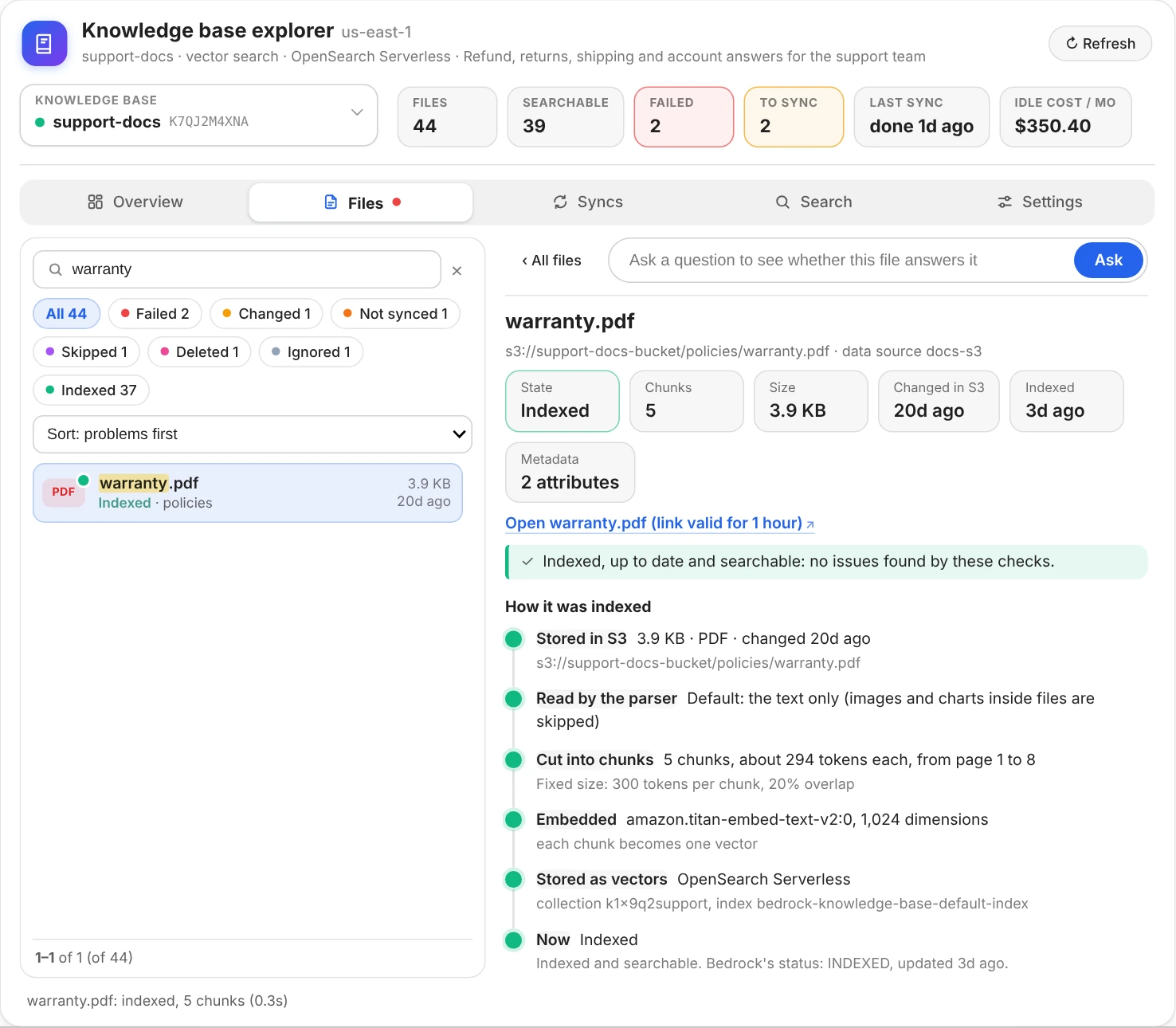
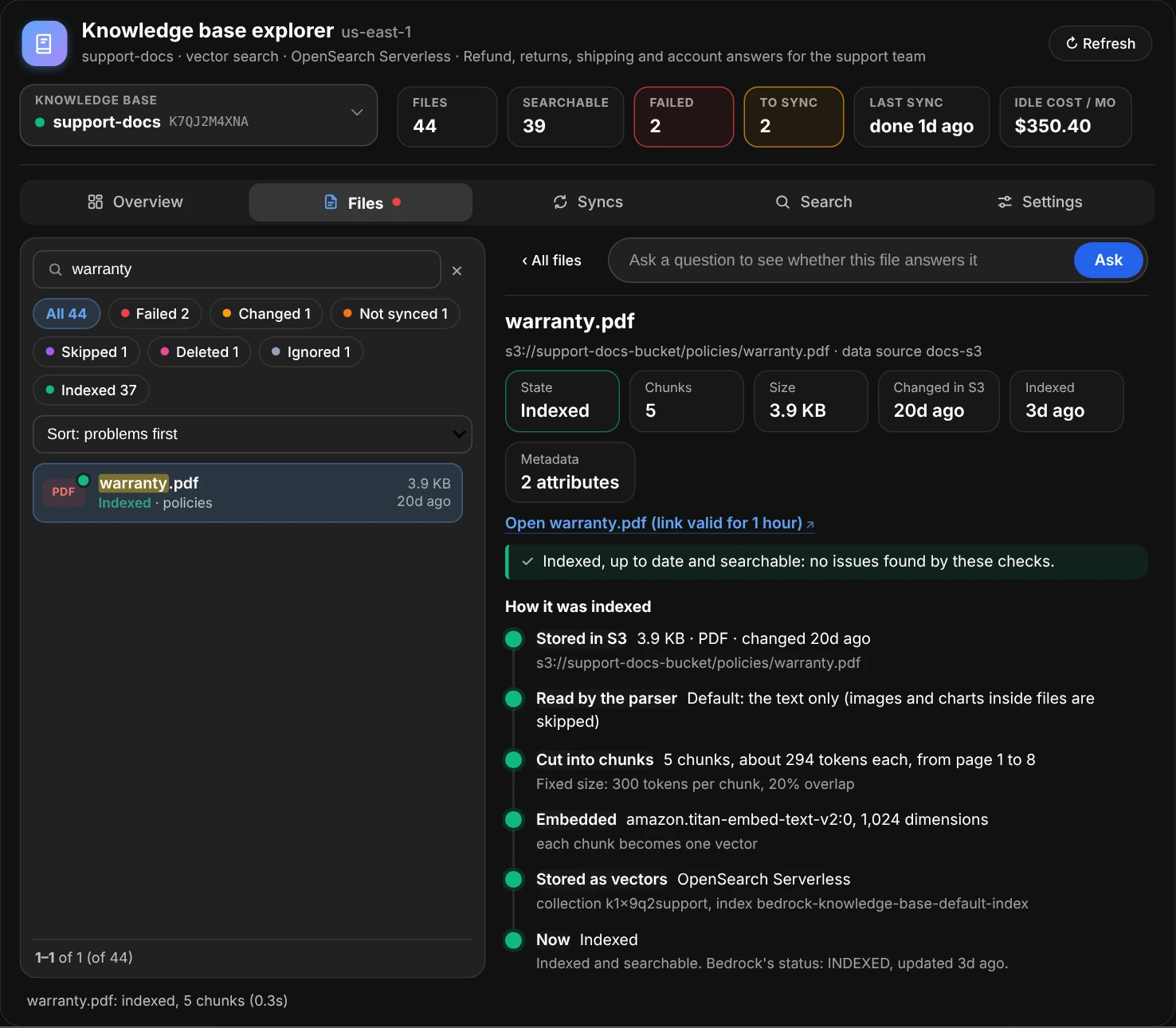
A file's page: each step from S3 into the vector store, here all of them green.
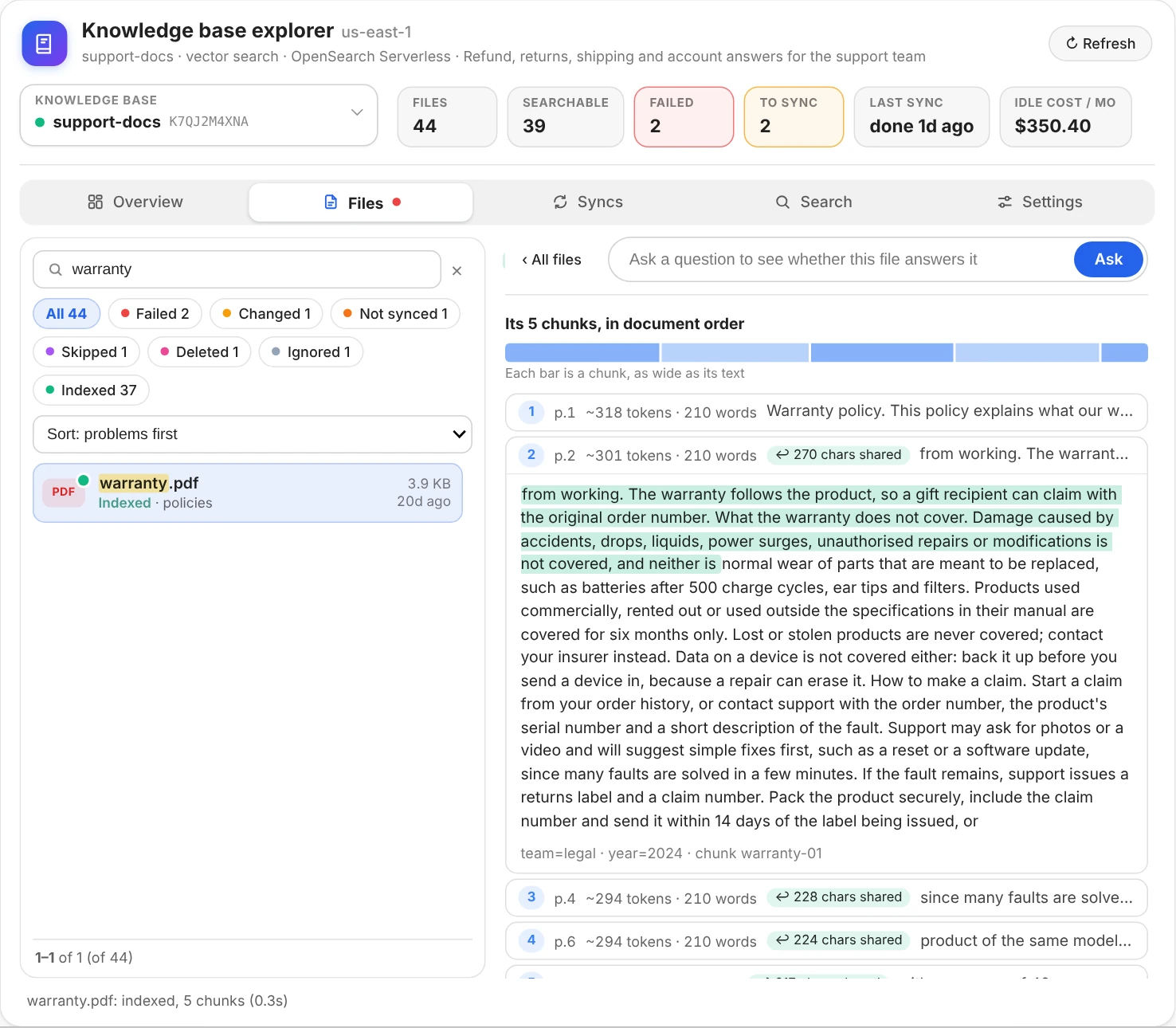
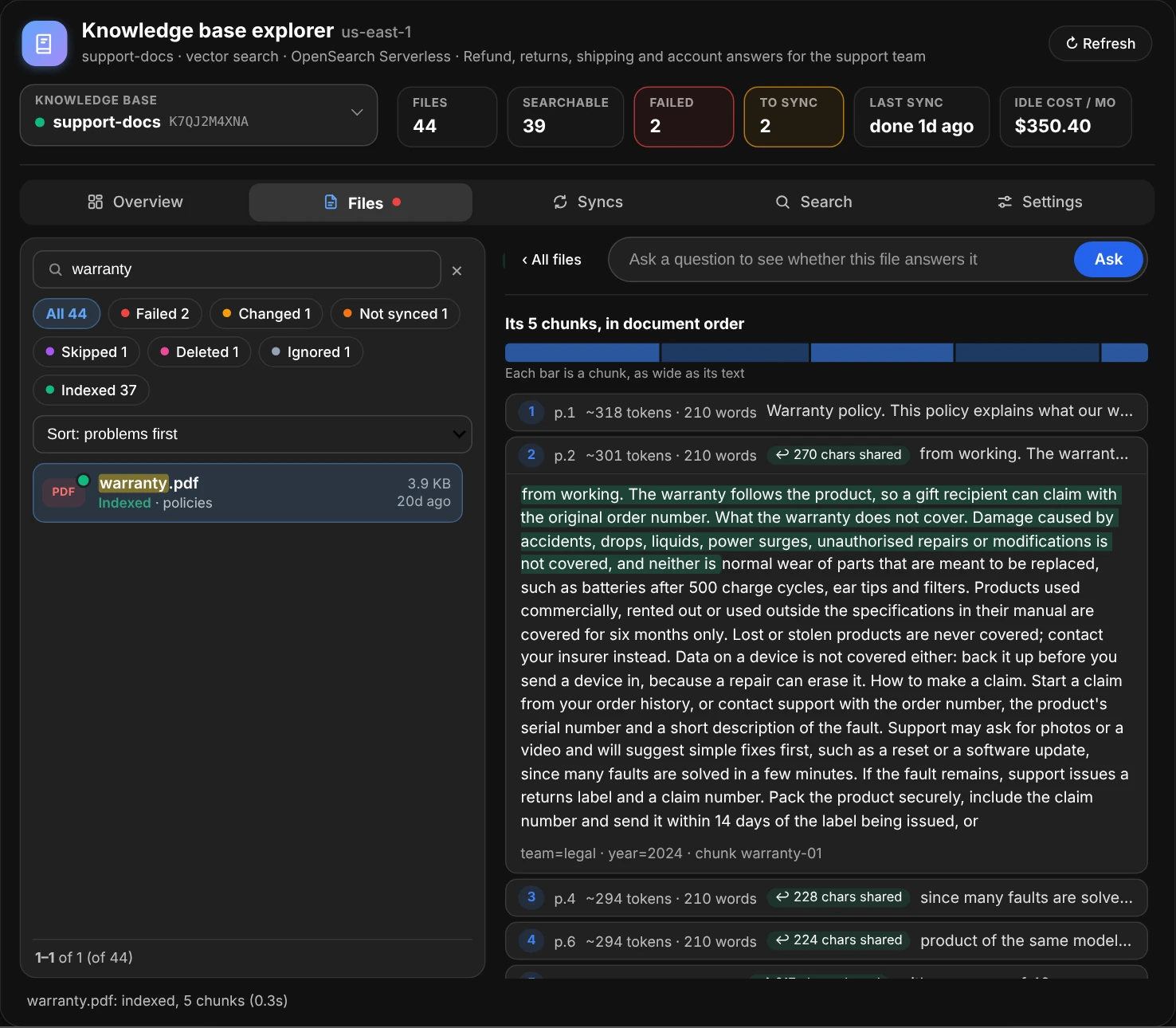
Its chunks in document order, one of them open: the green start is the text it shares with the chunk before it.
The steps, the chunks and the metadata on a file's page
The steps: Stored in S3 (its size, type and when it last changed), Read by the parser (the default parser reads the text only; a foundation model or Data Automation parser also reads tables, charts and scans), Cut into chunks (how many, how big, from which pages, and the data source's chunking), Embedded (the model and its dimensions), Stored as vectors (the vector store and its index) and where it stands Now.
Below the steps come its chunks, read from the vector store itself (a search limited to the file), in the order they come in the document. The bar shows one block per chunk, as wide as its text, with tiny ones in amber; for a .txt or .md file, a second bar shows where each chunk sits in the file, and what no chunk holds. Each chunk is a line with its page, its size in tokens and words, and its first words; click it for its full text and its metadata. With fixed-size or hierarchical chunking, each chunk starts with the end of the one before it: that overlap is marked in green, and the line says how many characters it repeats.
Last comes its metadata: the attributes in its .metadata.json next to the ones its chunks carry (what where= filters match), with what's wrong with the file when there is something: JSON that doesn't parse, a name Bedrock keeps for itself, an attribute its chunks don't have yet because the file changed after the last sync. The JSON as written, and Bedrock's record and the S3 object, are folded underneath.
A file that failed shows the step that failed in red, and the finding at the top says what usually fixes Bedrock's reason.
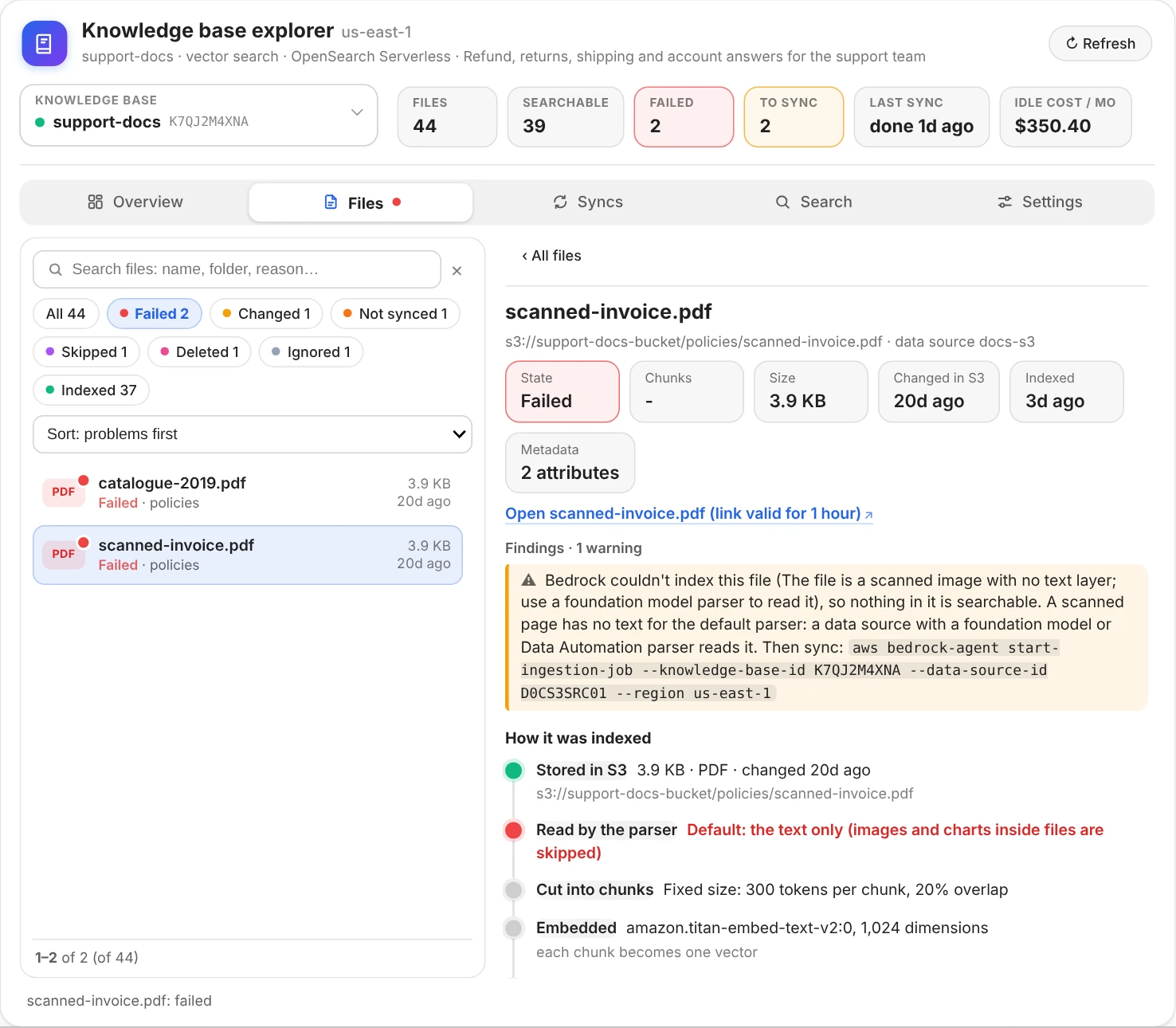
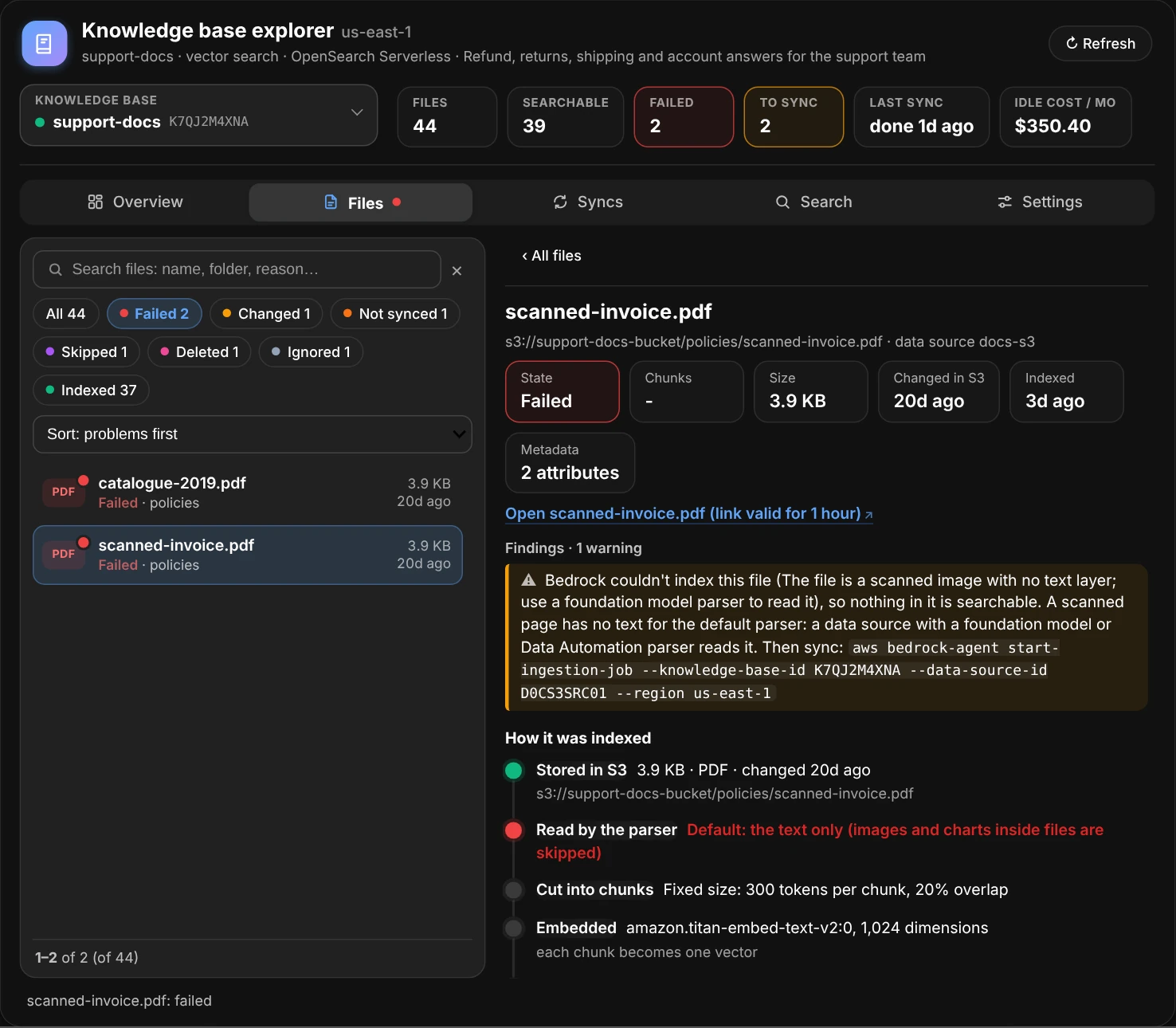
A failed file: Bedrock's reason, what usually fixes it, and the step that failed.
Does a question find this file?
Type a question on a file's page to see where the file ranks for it. A file that holds the answer but ranks #6 is never used, because an answer only sees the top 5.
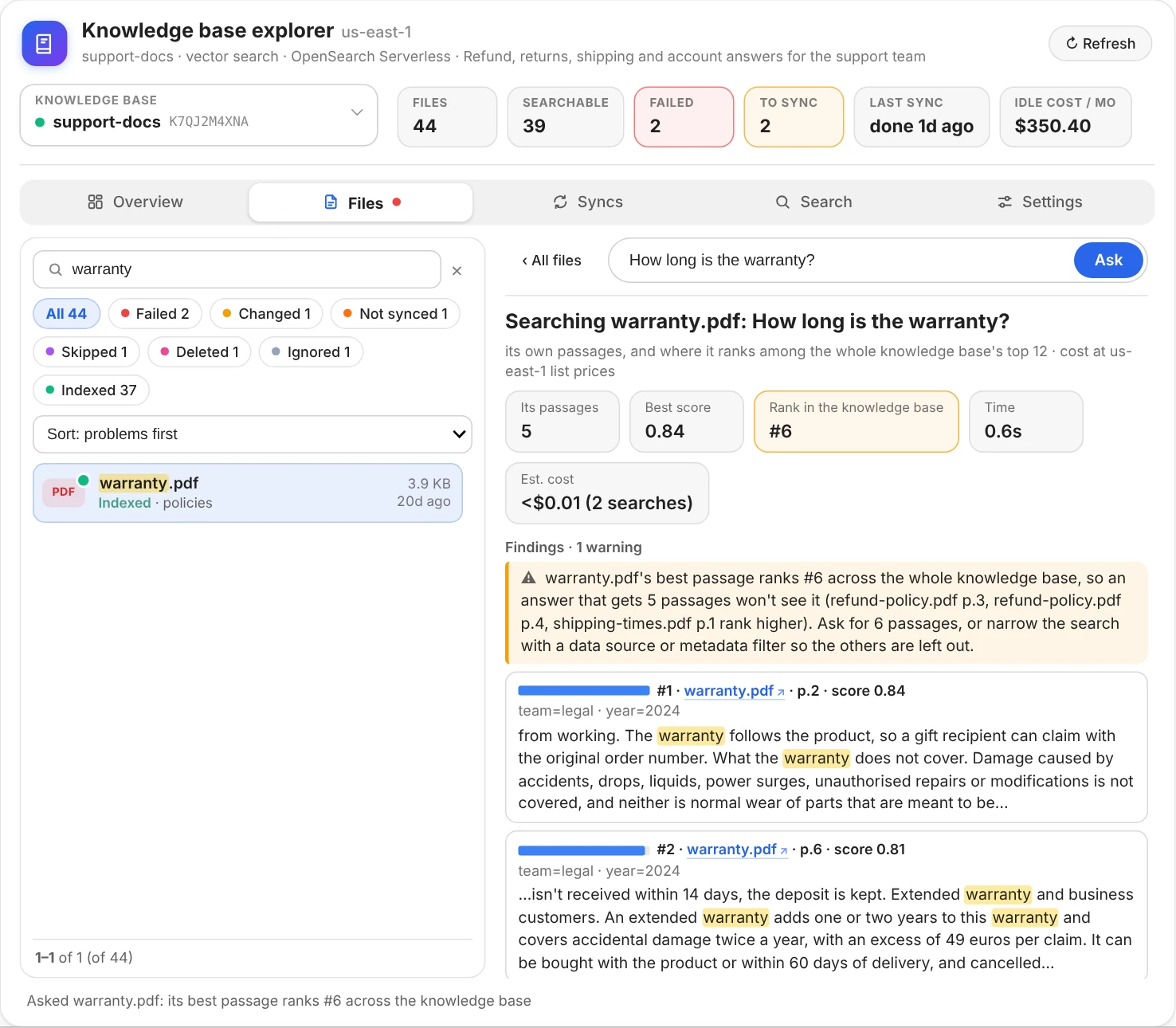
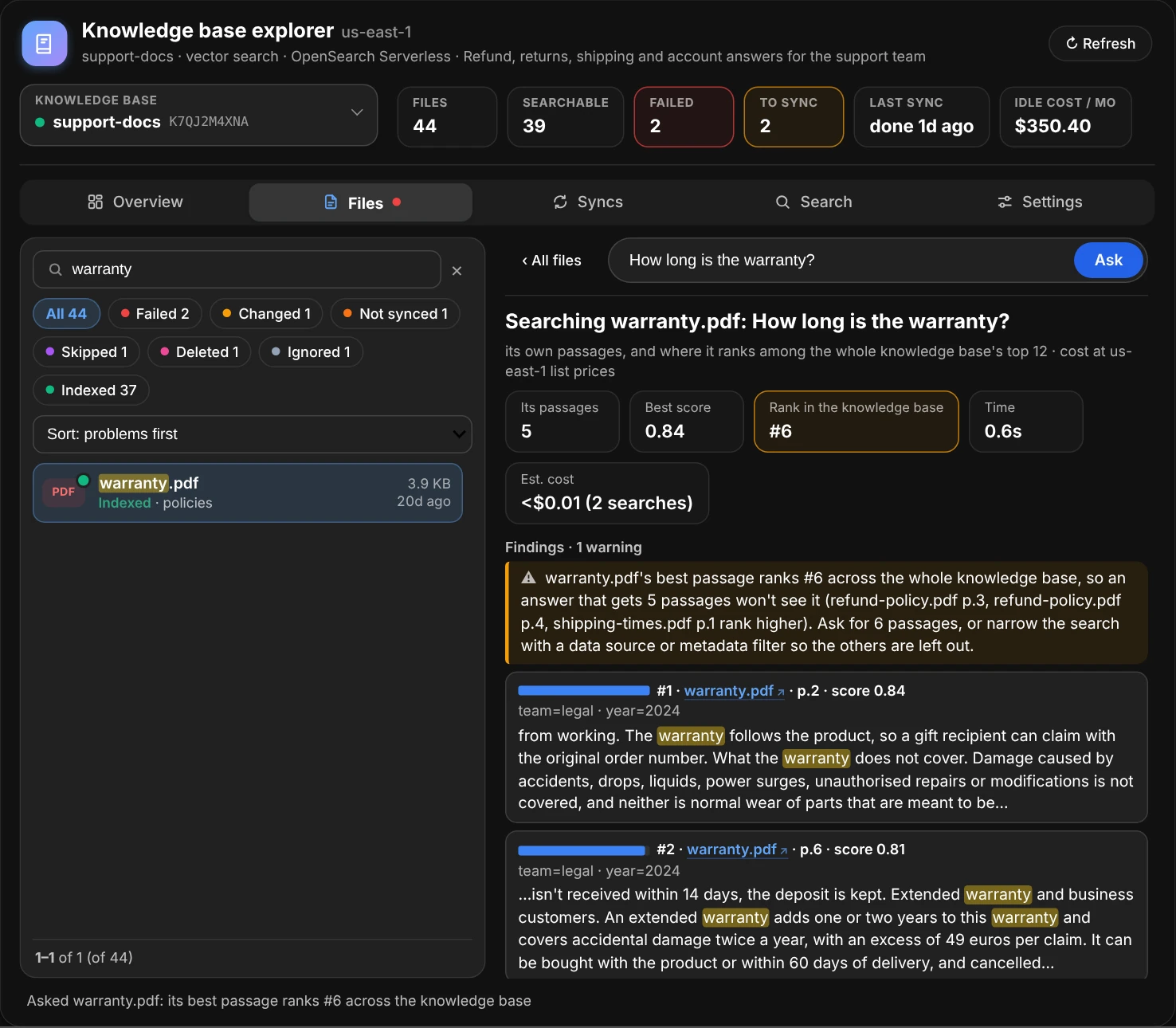
The file holds the answer, but five passages of other files rank above it.
Search
The Search tab asks the whole knowledge base a question: its passages, best first, with their scores and the question's words highlighted.
Pick how many passages, the search type (Semantic matches meaning, Hybrid also exact words such as error codes), a data source and a reranker. Type a metadata filter under them, like team = billing; year >= 2024, to search only the files it matches (see Filter by metadata). How payment-errors.md was indexed › under a passage opens its file's page in the Files tab.
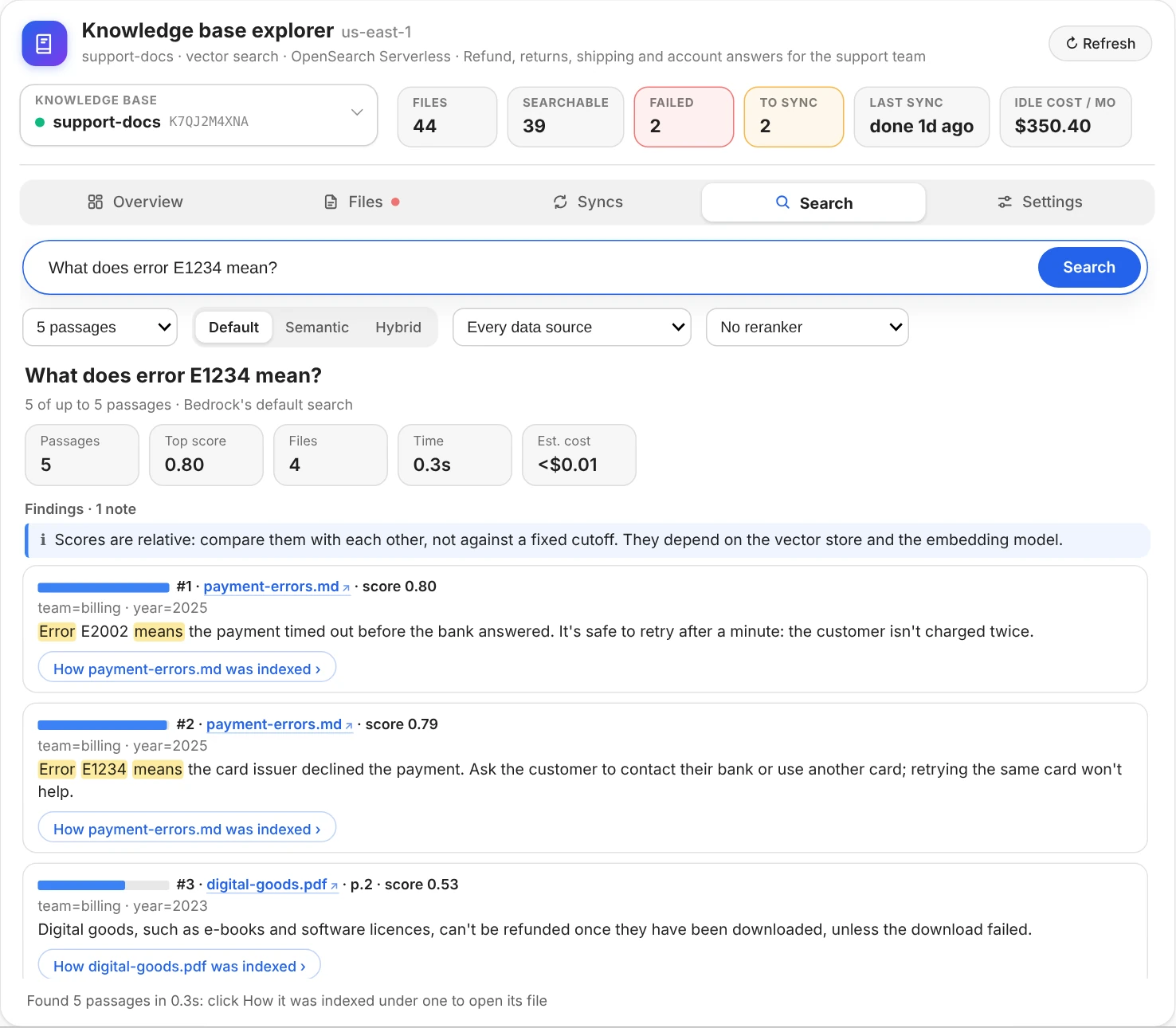
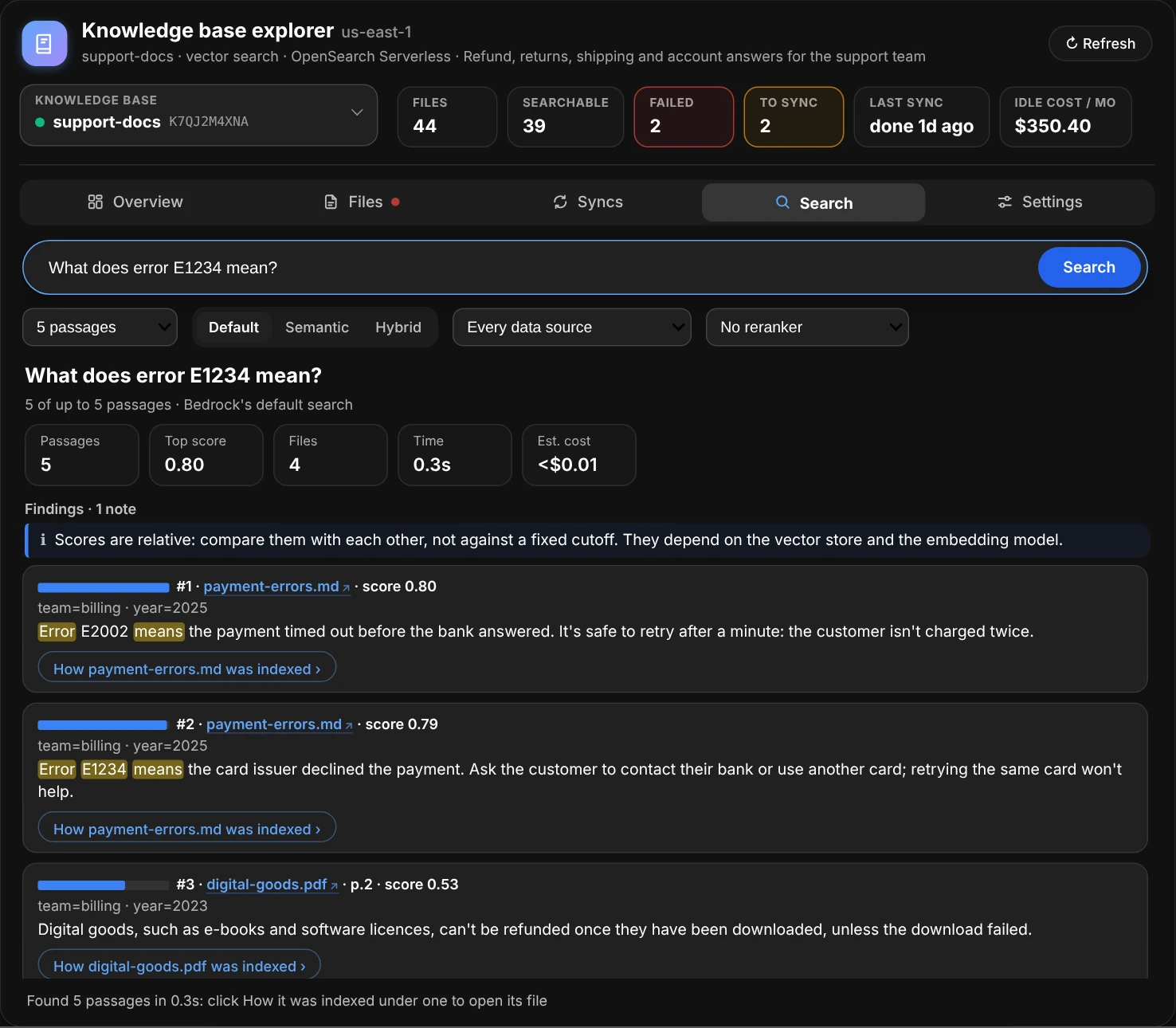
Search: each passage's How … was indexed › opens its file's page.
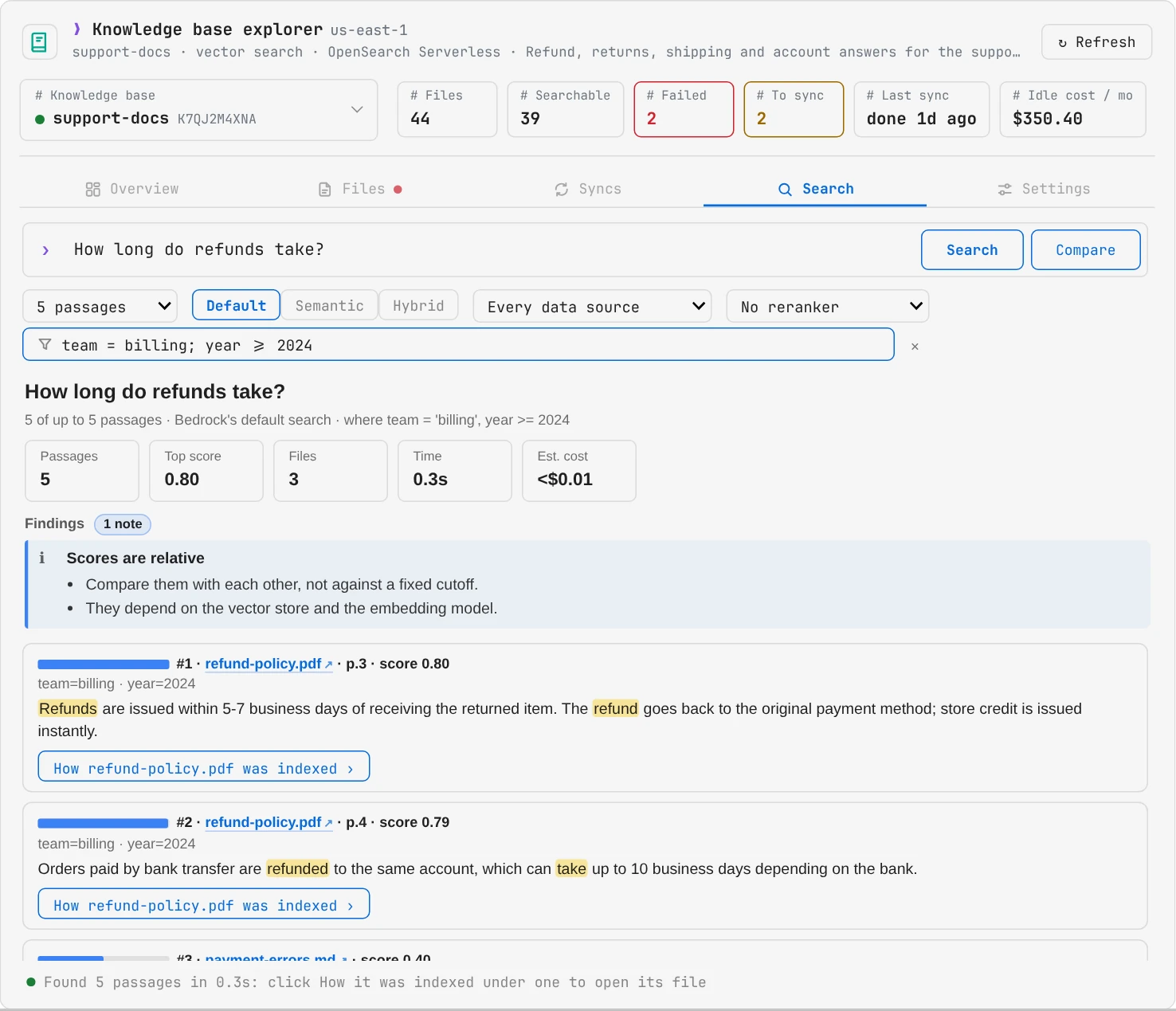
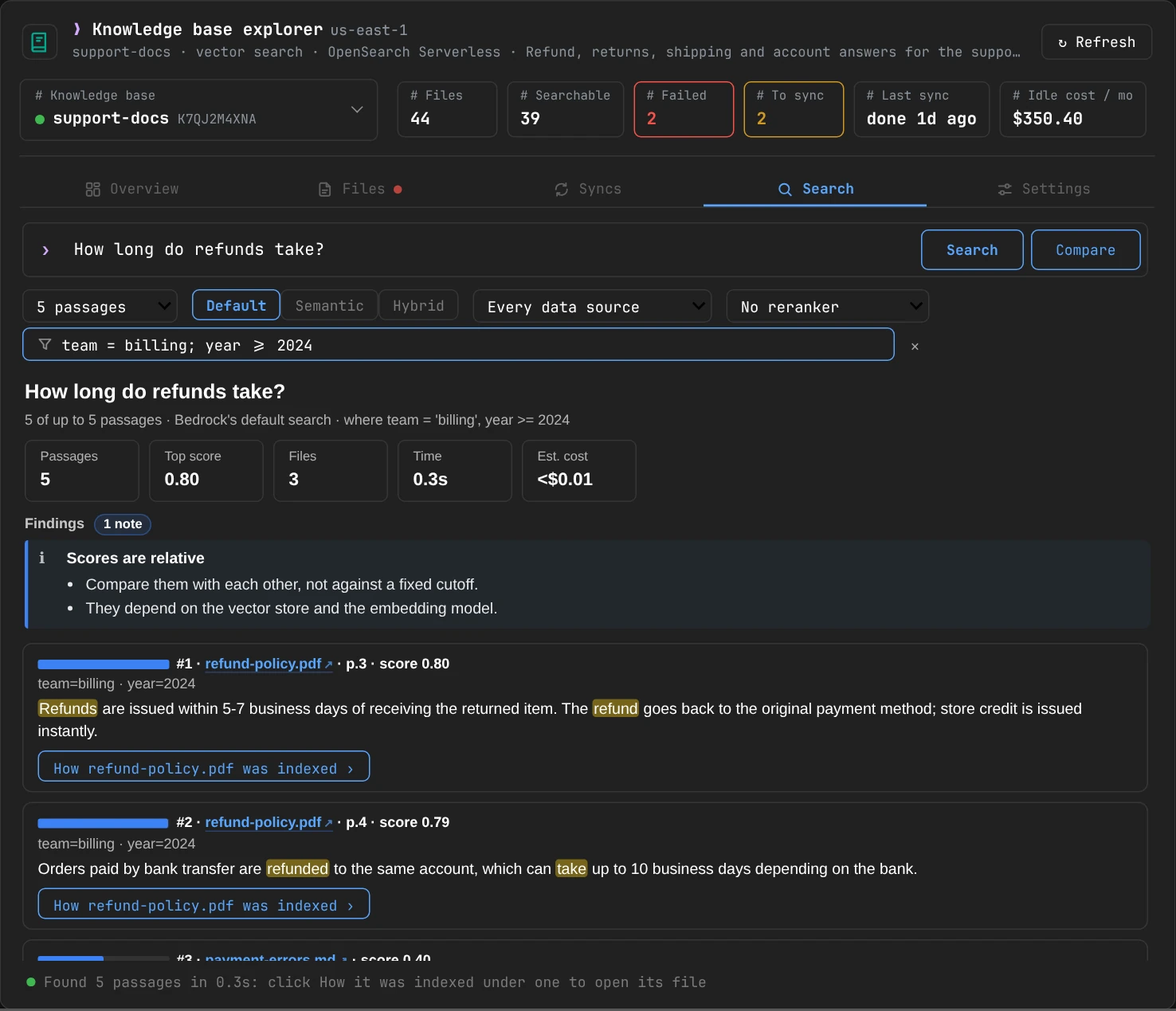
A metadata filter under the options: only the files whose .metadata.json matches.
Compare, beside Search, runs the question as Semantic and as Hybrid, with the passages picked and twice as many, and shows each passage's rank under each: the report compare() draws, with the window's data source and filter.
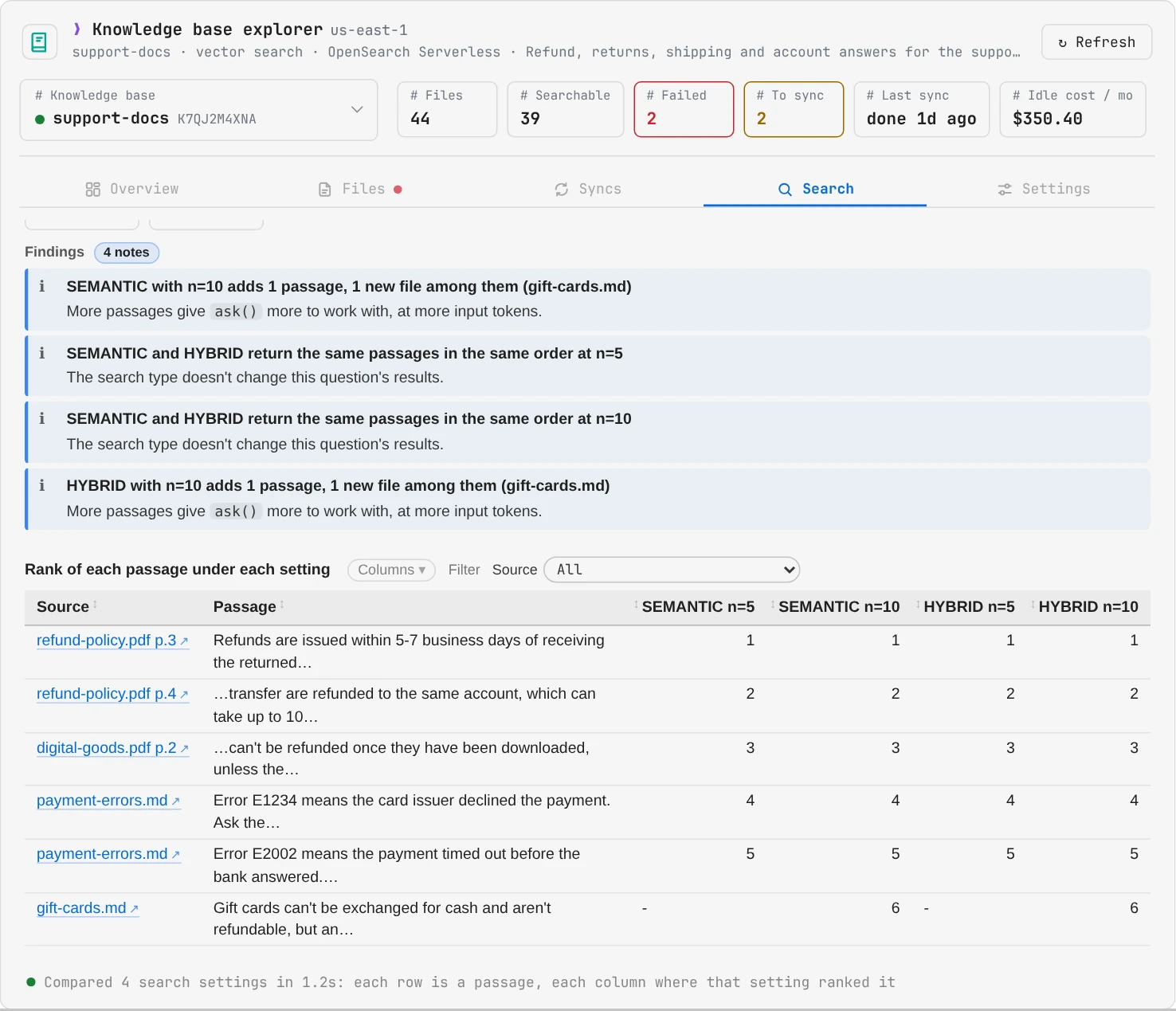
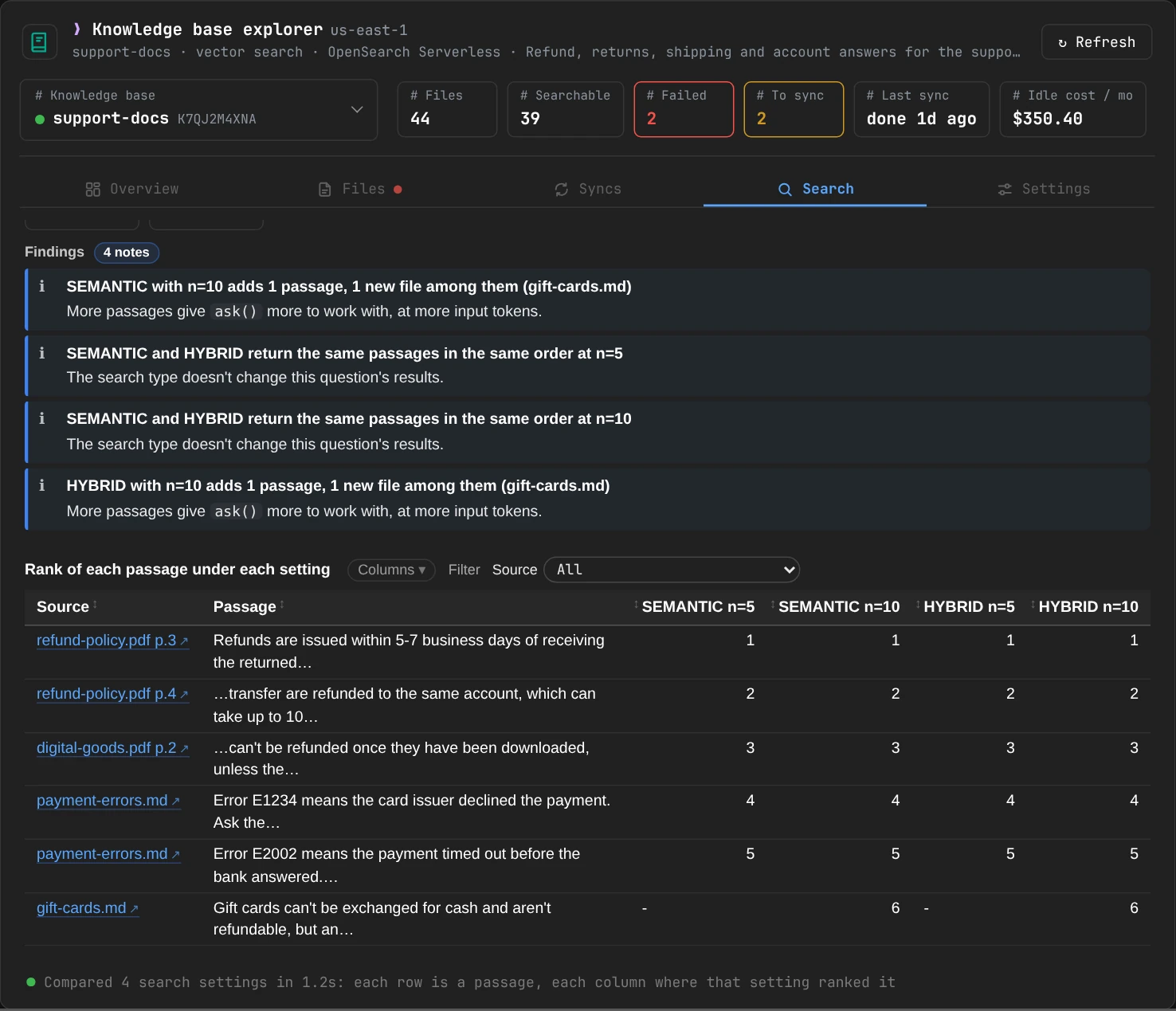
Compare: where each passage ranks with each search type and number of passages.
Syncs and settings
The Syncs tab is the sync history as a timeline; Settings is every setting in plain English.
- Syncs is the sync history as a timeline, newest first: which data source, when it ran and how long it took, what it read, added, changed, deleted and couldn't index, and why a sync failed.
- Settings has every setting in plain English: the embedding model and its dimensions, the vector store and which of its fields holds each part of a chunk, each data source's location, chunking, parser and deletion policy, and the tags. GetKnowledgeBase and GetDataSource as AWS returns them are folded at the end, with the AWS CLI commands that read them.
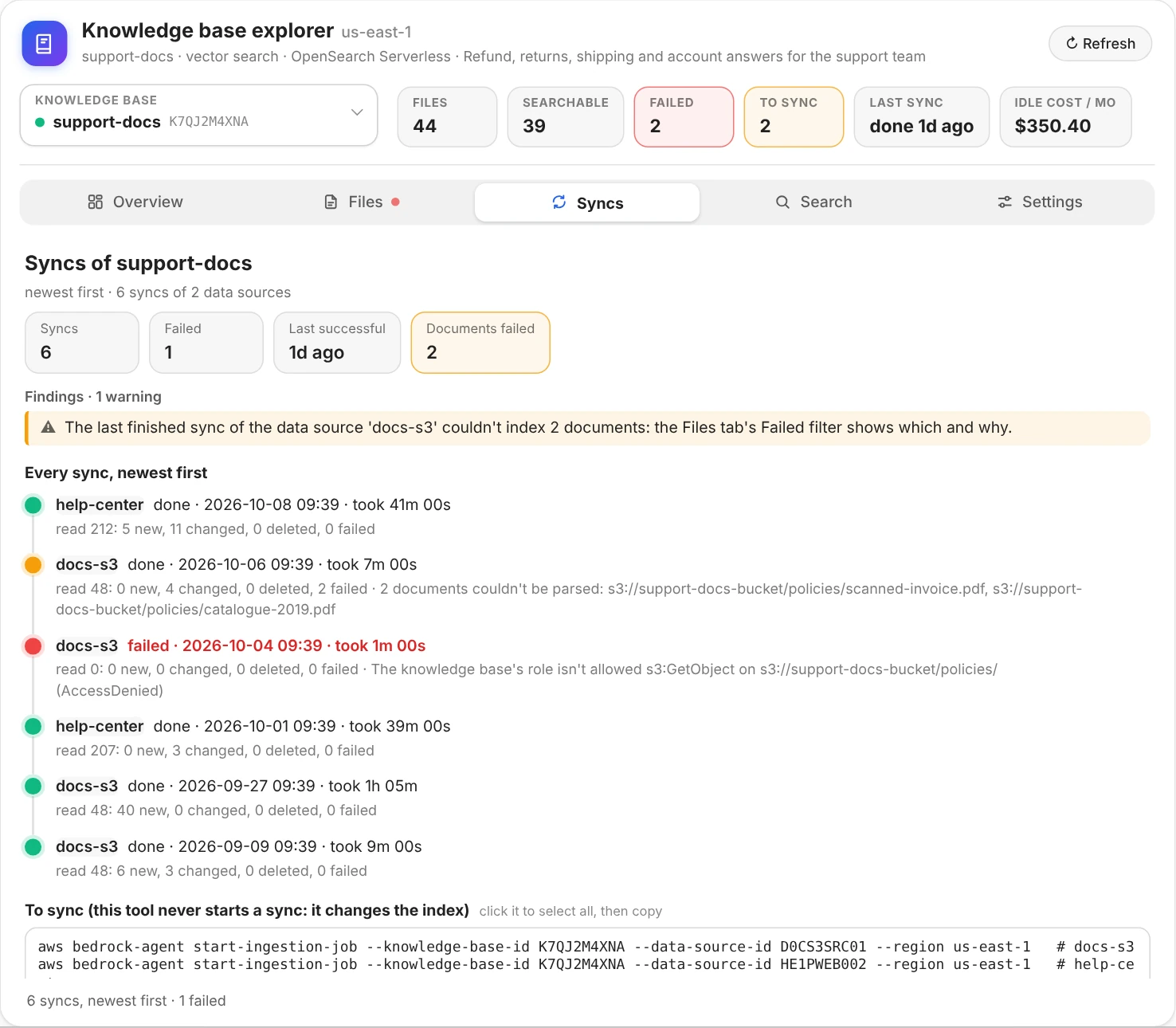
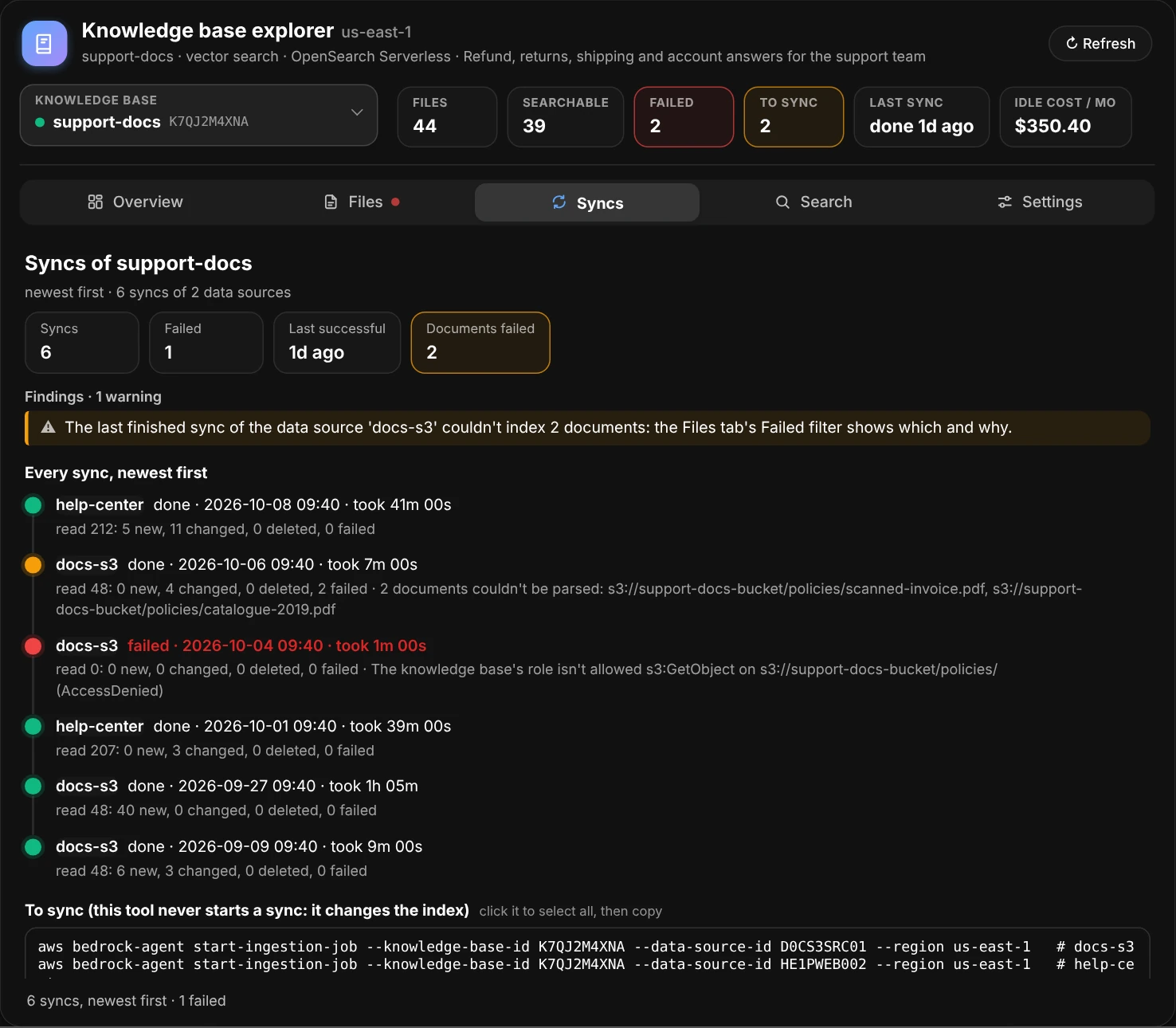
Syncs: the history as a timeline, with why a sync failed.
That's the guide. Everything below is reference for when you need it: driving the window from code, and every command.
From code
The window is an object you can drive: what a click does, a command does too, and what's shown is data you can read.
x = ui.explore("support-docs")
x.file("warranty.pdf")                                   # a file's page: its name, path in the bucket or s3:// path
x.search("How long do refunds take?", where="team = billing")   # the Search tab, with a metadata filter
x.compare("How long do refunds take?")                   # Semantic against Hybrid, as its Compare button does
x.open("another-kb")                                     # another knowledge base
x.refresh()                                              # read it again (the ↻ button)
Everything is read in the background: a click shows what's known at once and fills in the rest as it arrives, and the window keeps answering meanwhile. explore() returns the window: x.inventory, x.info and x.chunks hold the data behind what's shown, x.focus is what you're looking at (the knowledge base, the tab and the file or search open), x.file("faq.md"), x.search("...") and x.open("another-kb") do what the clicks do, and x.ui is a BedrockKBView for reports in other cells. With explore(..., assistant=AgentView(...)) (or x.attach(agent)), ✦ Ask at the end of the tab bar opens the agent's chat beside the tabs, asking about the file you have open (the agent's guide).
Command reference
| Command | What it does |
|---|---|
explore(kb=None, file=None, region=None, profile=None, height=None, assistant=None) |
Opens the window and returns it; ui.explore(...) on a BedrockKBView opens it on its knowledge base |
x.open(kb) |
Shows another knowledge base (a name, ID or ARN) |
x.file(path) |
Opens a file in the Files tab: how it was indexed, its chunks and its metadata |
x.search(question, where=None) |
Searches the knowledge base in the Search tab; where= types a metadata filter ("team = billing; year >= 2024") |
x.compare(question, where=None) |
Compares Semantic and Hybrid search, with the passages picked and twice as many |
x.refresh() |
Reads the knowledge base again: settings, files, syncs (the ↻ button) |