Read the map
What each tab of the page shows. The page is two tabs, with the entry point and the folder at the right of them.
The tabs
| Tab | Tells you |
|---|---|
| Graph | The paths: what comes in, who calls whom, and what it reaches |
| Step by step | Every line that matters, in the order it runs |
The graph
Read it left to right.
| Column | What's there |
|---|---|
| Comes in | What the code gets: its input, env vars |
| Entry | Where it starts, plus what runs at import |
| Calls | Your functions. Further right means deeper |
| Reaches | AWS services, the services its libraries reach (Redis, PostgreSQL, OpenAI), and the web |
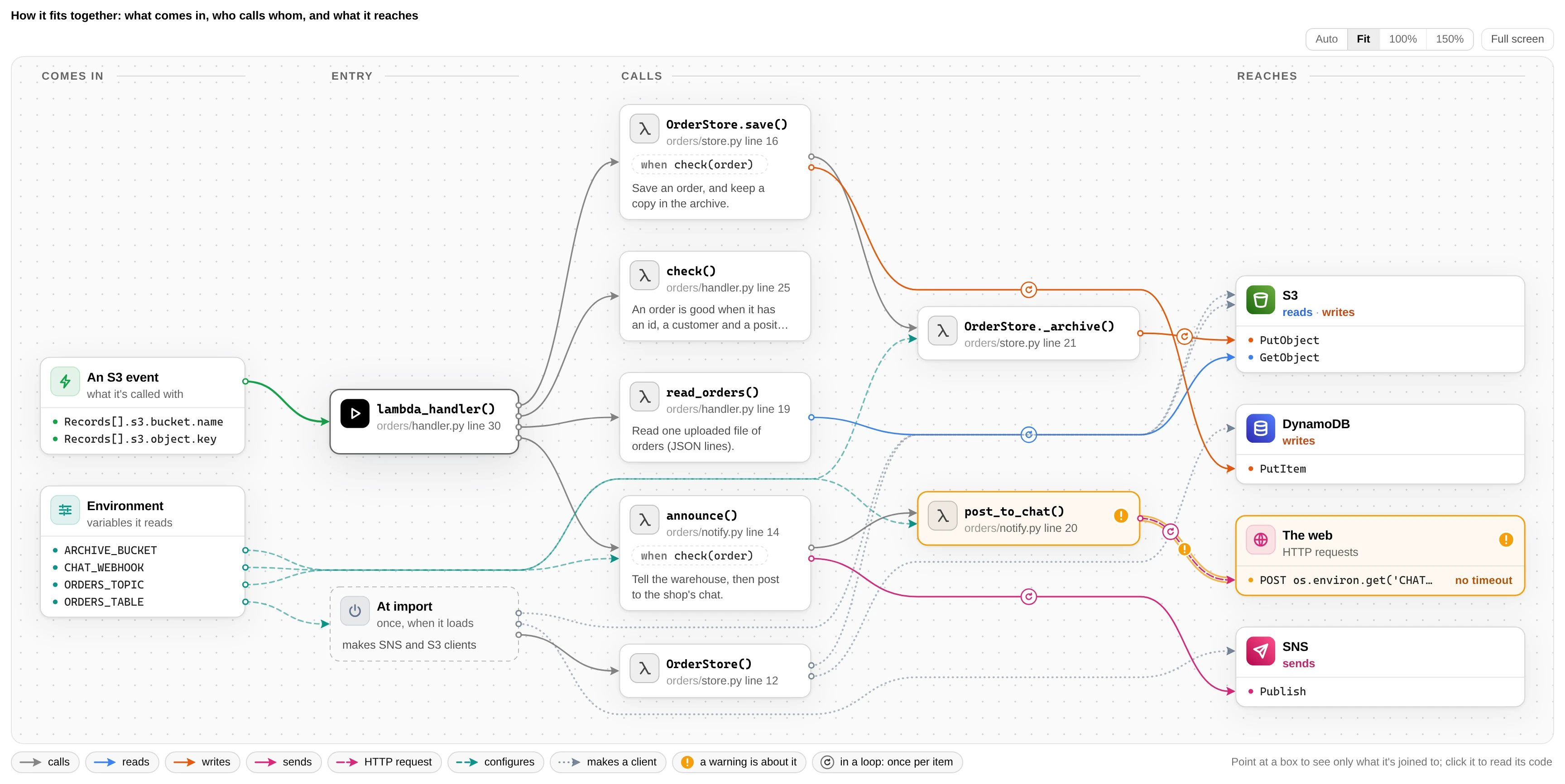
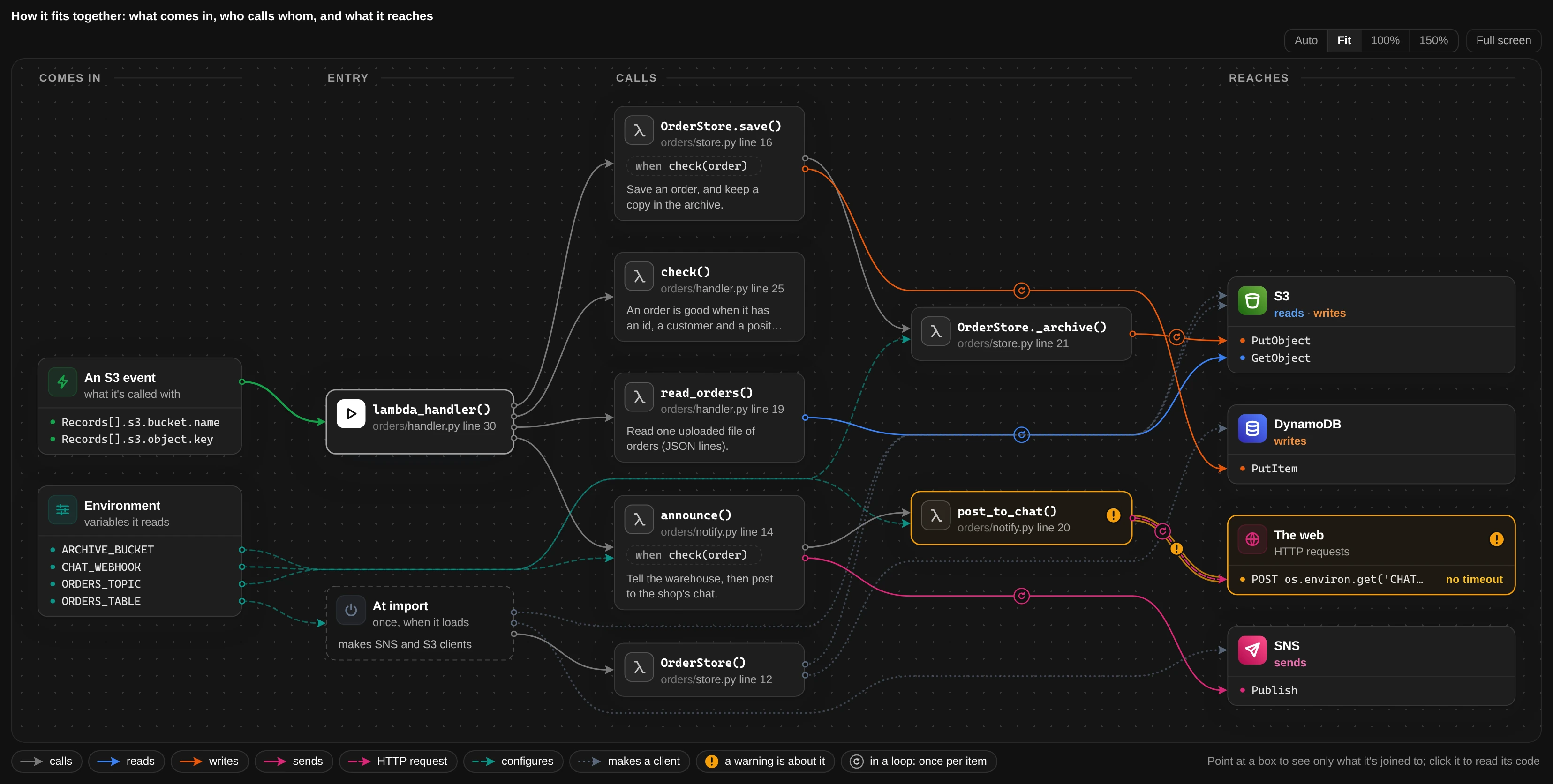
Arrow colours
| Arrow | Means |
|---|---|
| ━━ grey | calls |
| ━━ blue | reads |
| ━━ orange | writes |
| ━━ pink | sends, or an HTTP call (dashed) |
| ╍╍ dashed | an env var |
| ↻ | happens in a loop |
| ● amber | a warning is about it, such as an HTTP request with no timeout |
Worth knowing
Point at a box and everything it isn't connected to fades out.
Zoom, full screen and big graphs
The graph sits in a box of one size, about the window's height, and is drawn at its real size. Auto shrinks
it a little to fit the page's width; Fit puts all of it in the box; 100% and 150% are as big as it is
and bigger. Full screen gives it the whole window, with the same buttons. Move about it as on a canvas: drag
it to pan, hold Ctrl (⌘ on a Mac) and scroll, or pinch a trackpad, to zoom around the pointer, and with the graph
focused +, - and 0 (back to Auto). The − and + in its bottom-right corner zoom too, around how
big it's drawn. Arrows that skip columns from one box (the environment's, start-up's) or into one run as a single
line and part near the end, and a column too tall to take in is split into lanes side by side, so --functions 100 draws a wide map rather than a long strip.
Click a box to read its code
A panel slides in from the right, over the graph, with the code the box is about, its lines numbered. A function shows whole, with the lines that make the calls its arrows show lit in amber. An AWS service, the web, the environment, the input and At import show a few lines around each place the code uses them. When the folder is in git, each line of a function says who changed it last and how long ago, and pointing at one puts its commit in the panel's last row; the gear by × turns that off. Close it with ×, Escape, a click anywhere outside it, or the browser's Back button. Without JavaScript, × and Back still close it.
Open the calls a box leaves out
A box whose calls aren't drawn says so in blue, "+12 calls not drawn". Click it and the graph starts from that function, with every call it makes and whatever they reach. The line over the graph is the path down to it from the entry point: click a name in it to go back up, or the browser's Back button. All in the graph's bar draws every function at once. This is the one part of the page that needs JavaScript; without it the line is plain text, and the Step by step tab has every call.
Step by step
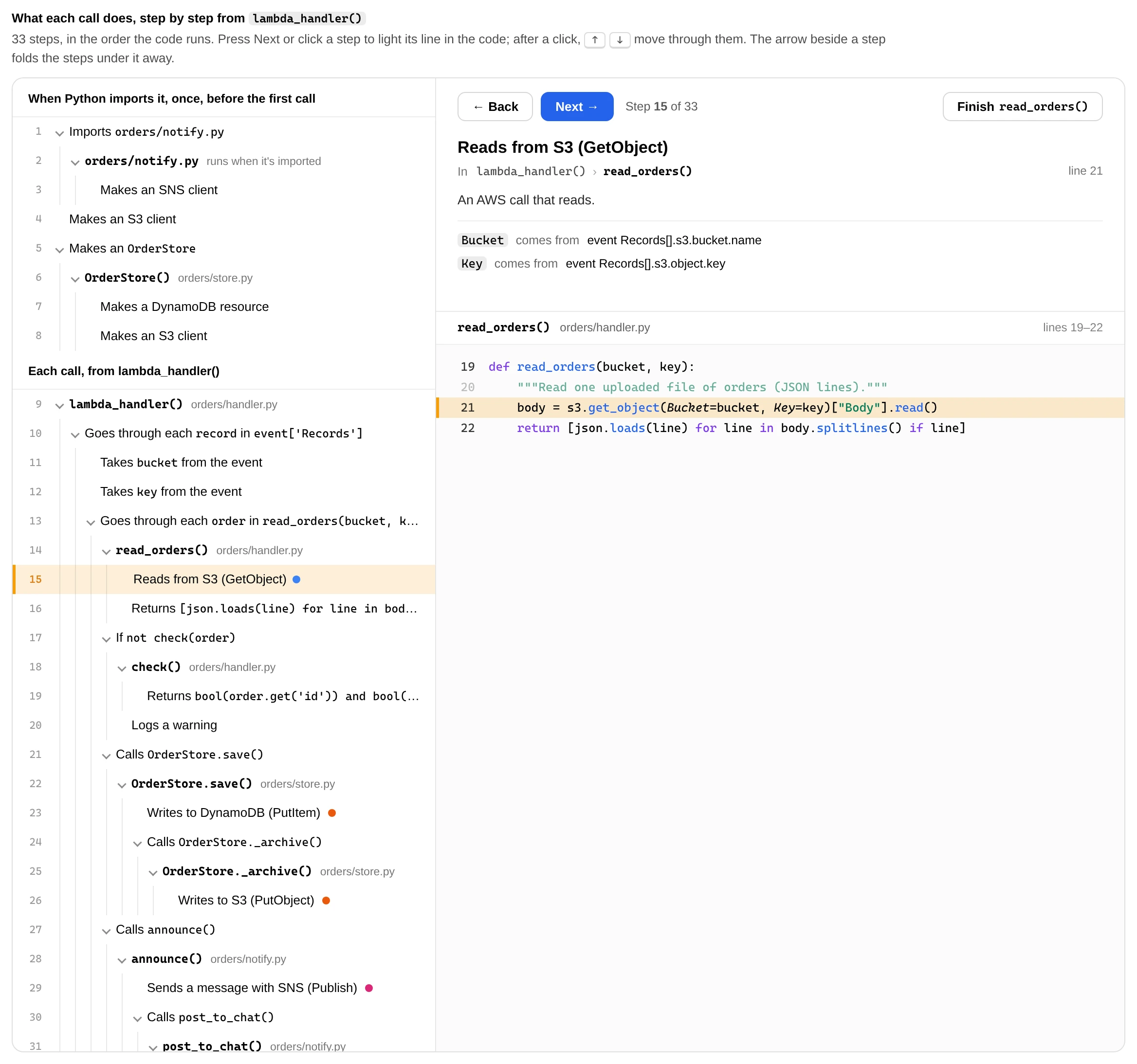
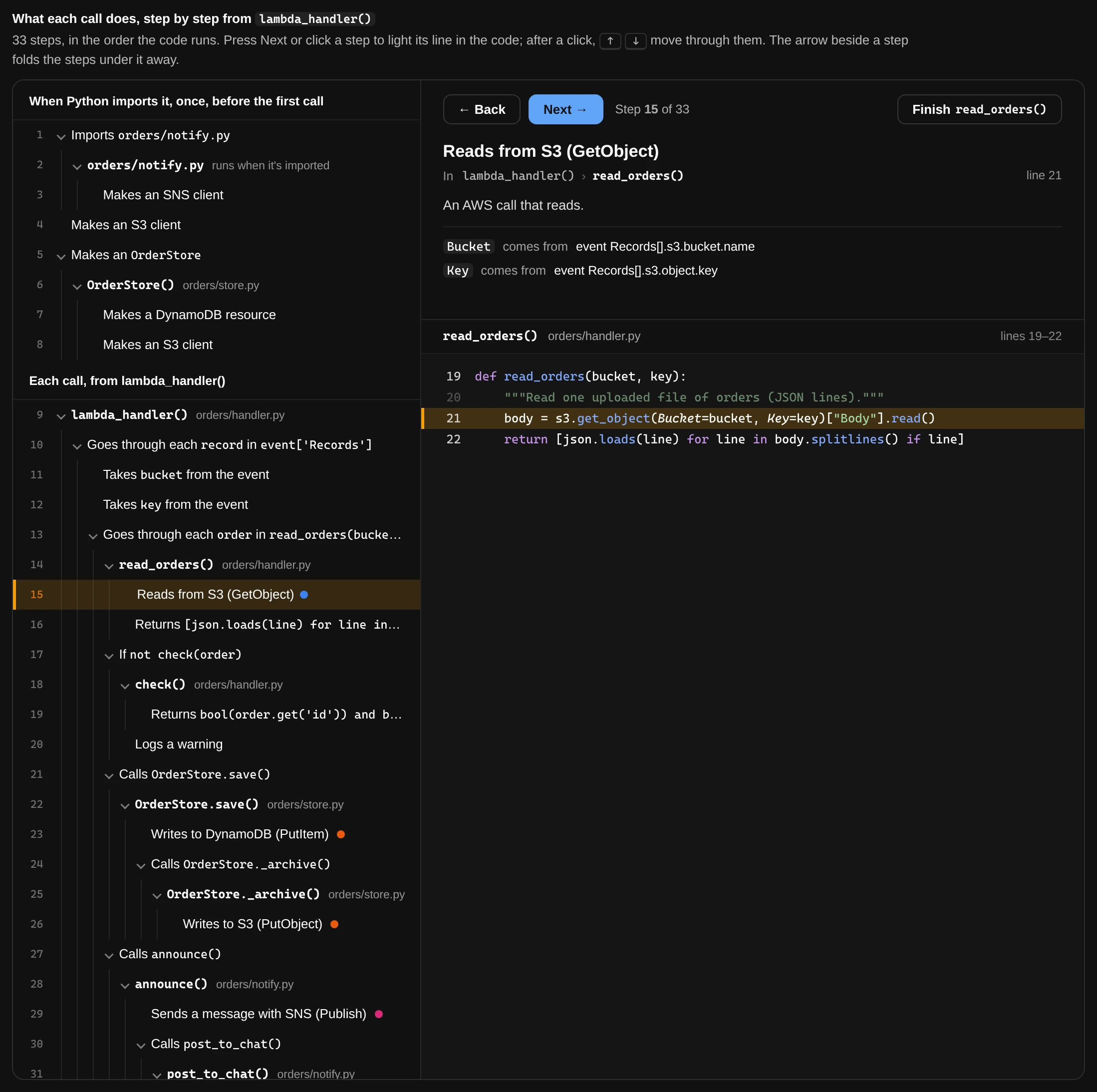
The tab beside the graph walks through the code in the order it runs, as a debugger steps through it.
The list on the left has every line that does something, each said in a few plain words ("Takes bucket from the
event", "Reads from S3 (GetObject)"): what runs when Python imports the code, then each call from the entry point,
with each of its own functions as a heading over its steps. A dot marks the steps that reach AWS or the web, in the
graph's colours. On the right is a card saying what the current step does and which calls it's inside, and under it
the function's code with that line lit.
The list is a tree, like a JSON viewer's: the arrow beside a step with steps under it (a function, a loop, a branch) folds them away and leaves a count in their place, so you can hide what you've read and keep the part you're following. A folded step still shows its card and code when Next lands on a step inside it.
| Button | Goes to |
|---|---|
| Next | The next line that runs, into a function when the line calls one |
| Back | The step before |
| Skip call | The next line in the same function, past what the line calls (a debugger's step over) |
| Finish | Where the function returns to (step out) |
Worth knowing
Click a step, in the list or a numbered line in the code, then use the arrow keys to step through the rest.
How it works without JavaScript
Each step is a radio button and the buttons are its labels, so the arrow keys move between them as they do in any radio group. The CSS shows the card of the checked step and the code of the function it's in, and moves the lit line there, which slides when the next step is in the same function. Each fold is a checkbox, and the steps under it carry its number as a class, so one rule hides them all.